Split PDF
Break any PDF into separate files or pull out specific pages without installing software. Fast, secure, and completely free to use.





Split Your PDFs In Just One Click
A PDF is one of those file types that everyone uses but nobody really thinks about until it becomes a problem. You open a 240 page report, you only need pages 12 to 18, and suddenly you are stuck emailing a giant file just to share a few paragraphs. That is exactly the moment a PDF splitter becomes useful.
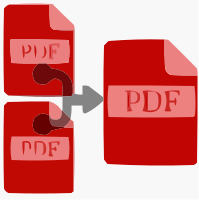
Splitting a PDF simply means taking one document and separating it into smaller PDF files. Nothing is rewritten. Nothing is rebuilt from scratch. The pages you choose are copied into a brand new PDF, and the rest stays behind. Think of it like cutting pages out of a printed booklet, except the original booklet stays perfectly intact on your device.
People split PDF files for all kinds of everyday reasons. Here are some of the most common ones we see:
- Extracting chapters. A textbook or manual is often hundreds of pages long. Pulling out one chapter gives you a short file you can actually study from.
- Sharing selected pages. If your client only asked for the pricing section, there is no reason to send the whole proposal.
- Organizing reports. Annual reports can be broken into finance, operations, and marketing sections so each team gets what it needs.
- Separating invoices. Accounting software often exports one long PDF containing fifty invoices. Splitting turns it into fifty individual files you can file by client.
- Saving contracts individually. A batch of signed agreements can be separated so each contract lives in its own folder.
- Creating study materials. Students often pull out only the practice questions or the summary pages before an exam.
- Reducing document size for easier sharing. Smaller files upload faster, attach to email more easily, and open quicker on phones.
When you split PDF files, you usually have a few different approaches available depending on what you need:
- Split by single page. Every page becomes its own separate PDF. Useful for invoice batches, certificates, or scanned forms.
- Split by page range. You tell the tool you want pages 5 to 20, and you get one clean file containing exactly those pages.
- Split into multiple smaller documents. One long file becomes several parts, which works well when you want to break a 300 page manual into six readable sections.
Once you understand these three options, almost every splitting task becomes simple. You are not editing the content. You are just deciding where the cuts go. If you also need to remove unwanted pages instead of keeping them, the Delete PDF Pages tool handles that side of the job.
Table of Contents
- Split Your PDFs In Just One Click
- You Can Split PDF Files Fully Online. No Programs Needed.
- The PDF Splitter Is 100% Secure And Private
- Fast, High Quality PDF Splitting Tool
- No Watermark Or Advertising
- Easy To Use By Everyone
- Benefits Of Splitting PDF Files
- Works On Any Device
- Step By Step: How To Split PDF Online
- More PDF Tools
- Frequently Asked Questions About Splitting A PDF File
- Why do I need to split a PDF?
- Can a PDF be split into more than two parts?
- Will a split PDF give me problems when saving it on a USB drive?
- Can I change a PDF's format after it's been split?
- Will I lose the document's quality when I split a PDF into parts?
- Do I need to install a PDF splitting program?
- Can I split a PDF for free?
- Is it safe to split PDFs online?
- Can I split password-protected PDFs?
- Can I split PDFs on Android?
- Can I split PDFs on iPhone?
- Can I split large PDF files?
- Is there a file size limit?
- Can I extract only one page?
- Can I split PDFs by page range?
- Will bookmarks remain after splitting?
- Can I merge the files again later?
- Which browsers support the Split PDF tool?
- Can I print only the extracted pages?
- Does splitting affect file quality?
- Can I split multiple PDF files at once?
- What happens to my original file?
- Can I split a scanned PDF?
- Conclusion
You Can Split PDF Files Fully Online. No Programs Needed.
The best part about splitting a PDF today is that you do not have to download anything. The entire process happens in your browser. Open the page, add your file, choose your pages, and download the result. That is the whole workflow.
Here is how it feels in practice. Say you are working on a shared computer at a library or at a client office. You cannot install software there, and honestly you would not want to. With the Split PDF tool, you just open a browser tab and get on with it. Five minutes later you have your files and you have left nothing behind on that machine.
What the process looks like
- You add your PDF by clicking the upload area or dragging the file straight into the browser window.
- You choose how you want to divide it, either by individual pages or by a range.
- You confirm your selection and let the tool build the new files.
- You download the results, usually as separate PDFs or bundled together for convenience.
No technical knowledge required
You do not need to know anything about PDF structure, page objects, or file formats. If you can type a page number, you can use an online PDF splitter. There are no settings to configure, no menus buried three levels deep, and no software updates nagging you every month.
This also means the tool stays the same no matter where you use it. The version you use on your office desktop behaves exactly like the version you use on your phone at the airport. Nothing to sync, nothing to license, nothing to reinstall after a system update.
The PDF Splitter Is 100% Secure And Private
Documents are personal. A contract might contain salary figures. A medical form might contain your history. A tax return contains just about everything. So security is not a small detail here, it is the whole foundation of trust.
Encrypted uploads
Every file you send travels over an encrypted HTTPS connection. That means the data moving between your device and the server is scrambled while it is in transit. Even on public Wi-Fi at a coffee shop or a hotel lobby, the contents of your PDF are not readable by anyone watching the network.
Secure processing
Once your file arrives, it is processed in an isolated environment that exists only to handle that one job. Your document is not indexed, browsed, shared, or added to any library. It is handled by the splitting process and nothing else.
Automatic file deletion
Files do not sit around on the server. After processing finishes and your download window passes, both the original upload and the generated files are automatically removed. You do not have to remember to clean anything up, because it happens on its own.
Complete privacy
No account is required just to divide a document, and your file contents are never used for anything beyond the task you asked for. If you are handling something particularly sensitive, a good habit is to split it, download the results immediately, and close the tab. Once the automatic cleanup runs, that copy is gone.
One practical note worth mentioning. If your PDF is protected with a password, the tool will need access to the content before it can separate pages. In that case you may need to remove the protection first using the Unlock PDF tool, and then apply protection again afterwards with Lock PDF once your new files are ready.
Fast, High Quality PDF Splitting Tool
A common worry is that splitting will somehow damage the document. It will not. Here is why.
When you extract PDF pages, the tool copies those pages into a new PDF container. The text stays as real, selectable, searchable text. Images keep their original resolution. Vector graphics, logos, charts, and line art stay sharp because they are copied as they are, not flattened or re-rendered. There is no extra compression applied along the way, so nothing gets softened or degraded.
A simple way to picture it: you are not photocopying pages, you are moving the original pages into a new folder. What comes out looks exactly like what went in.
What this means for real documents
- A scanned contract keeps the same scan quality it had before.
- An architectural drawing keeps its fine lines and readable dimensions.
- A product catalogue keeps its photo clarity for printing.
- A form keeps its layout and spacing exactly as designed.
How long it takes
Processing time depends mostly on two things: the size of your file and the speed of your internet connection. A ten page document usually finishes almost instantly. A 300 page scanned manual with high resolution images will take longer, mainly because uploading it takes longer.
If you are on a slow connection and working with a very large document, it can help to reduce the file size first with the Compress PDF tool. Just keep in mind that compression is a separate step with its own trade-offs, and splitting alone will never change your quality.
No Watermark Or Advertising
There is nothing more frustrating than doing your work, downloading the file, and finding a big logo stamped across the corner of every page. That does not happen here.
The PDFs you download are clean. Specifically, that means:
- No watermarks placed over your pages.
- No advertising banners inserted into the document.
- No promotional cover page or trailing page added to the file.
- No branding stamped into headers, footers, or margins.
- No hidden trial limits that lock you out after a few uses.
This matters more than people realise. If you are a freelancer sending a portfolio sample to a client, a stray logo makes the document look unprofessional. If you are a lawyer filing an extract of an agreement, an added page could genuinely cause problems. Your files should look like your files, and that is the whole point.
Of course, if you actually want a mark on your document, that is a different situation and you have full control over it. The Add Watermark to PDF tool lets you place your own text or logo exactly where you want it, on your terms.
Easy To Use By Everyone
The tool was built with the assumption that most people are not document experts. They just need one thing done, quickly, and then they want to get back to their real work. Here is how different groups actually use it day to day.
Students
Course readers are often massive. A student can pull out just the three chapters covered in this week's lecture, save them to a phone, and read on the bus. Before an exam, splitting out only the past paper questions creates a tight revision file instead of a 400 page monster.
Teachers
A teacher preparing a worksheet packet can separate the answer key from the questions, so students receive one file and staff receive another. Splitting a textbook chapter into individual lessons also makes it easier to upload to a class portal week by week.
Office workers
Meeting decks and reports get long fast. Splitting lets you send the finance team only the budget appendix instead of the entire quarterly review. It also keeps email attachments small enough to actually go through.
Businesses
Purchase orders, shipping documents, and monthly statements often arrive as one merged export. Splitting them into individual records makes archiving and auditing far less painful at the end of the year.
Lawyers
Legal bundles can run into thousands of pages. Extracting a specific exhibit, witness statement, or schedule means you can share exactly what is relevant without exposing the rest of the file. Once separated, a document can be signed with the Sign PDF tool before it goes out.
Accountants
Bank statements, receipts, and invoice batches usually arrive stacked together. Splitting by page turns one file into individual invoices that can be matched to entries in the books. If new invoices need creating too, the PDF Invoice Generator covers that part of the workflow.
Designers
A print-ready catalogue can be split so the printer receives only the cover, or so a client reviews only the spread they asked about. Designers also split multi-page exports when different sections go to different reviewers.
Freelancers
Sharing a work sample is much easier when you send three relevant pages instead of an entire past project. It looks focused, it respects the client's time, and it keeps the rest of your work private.
Government employees
Public records requests often involve releasing specific sections of a larger file. Splitting makes it straightforward to prepare exactly the portion that is being shared, without touching the source document.
Anyone working with PDF files
Insurance claims, warranty documents, travel bookings, medical results, school forms. If you have ever needed one page out of many, you already have a reason to use a PDF page splitter.
Benefits Of Splitting PDF Files
Splitting sounds like a small thing, but the practical benefits stack up quickly. Here is what actually changes once you start doing it.
1. Extract only the pages you need
Instead of scrolling through 180 pages to find the warranty terms, you keep a two page file with exactly that information. Next time you need it, it opens in a second.
2. Share smaller files
Many email systems reject attachments over a certain size. A 40 MB report that keeps bouncing back becomes a 2 MB extract that sends without any trouble.
3. Organize large documents
A training manual split into modules can be stored in separate folders per department. New staff then get the three files relevant to their role instead of one intimidating document.
4. Save storage space
If you only need the summary section of a large scanned archive, storing that extract instead of the full file frees up meaningful space on cloud drives and older laptops.
5. Simplify collaboration
When five reviewers each need a different section, sending five smaller files avoids confusion. Nobody has to hunt for their part, and comments come back cleaner.
6. Separate invoices or contracts
A single export containing sixty invoices becomes sixty named files. Filing them by client or by month suddenly takes minutes instead of an afternoon.
7. Create custom documents
You can pull the pages you want from a source file and assemble a purpose-built document. Combine that with the Merge PDF tool and you can build a tailored pack from several different sources.
8. Faster file sharing
Smaller uploads mean faster transfers, especially over mobile data. Whoever receives the file also downloads and opens it faster, which matters when they are on a phone.
9. Easier printing
Printing only the pages you need saves paper, ink, and time. Splitting first also avoids the classic mistake of accidentally printing the entire document. When you are ready, the Print PDF tool makes that step straightforward.
10. Better document management
Small, clearly named files are far easier to search, back up, and archive than one enormous document that nobody remembers the contents of. Good file hygiene starts with sensible file sizes.
Works On Any Device
Because everything runs in the browser, there is no separate version to hunt down for your operating system. The same tool works across all of these:
- Windows laptops and desktops, including older machines that struggle with heavy software.
- macOS computers, both Intel and Apple silicon.
- Linux distributions, where PDF software choices are often limited.
- Android phones, handy when a document lands in your inbox while you are out.
- iPhone, using Safari or any other browser you prefer.
- iPad, which works nicely for reviewing pages before you choose your ranges.
- Tablets of all kinds, including Android and Windows models.
- Chromebook, where browser-based tools are the natural way to work anyway.
All you really need is a reasonably modern browser and an internet connection. There is no minimum RAM requirement, no installer, and no admin permission needed, which is a genuine relief on locked-down work or school computers.
A quick tip for mobile users: files downloaded on a phone usually land in your Downloads folder or your Files app. If you plan to work on the document afterwards, it is often easier to save it straight to a cloud folder so it appears on your computer too. You can also preview results right away using the PDF Reader before sending anything on.
Step By Step: How To Split PDF Online
Here is the full process, explained properly rather than just listed.
-
Open the Split PDF tool. Load the page in your browser. Nothing downloads to your device, and you do not need to create an account just to get started. If you are on a slow connection, give the page a moment to fully load before adding your file.
-
Upload your PDF file. Click the upload area and pick your document, or drag it directly into the window. On a phone, you can select the file from your storage or from a cloud app. Larger documents take longer to upload, so if you are on mobile data and the file is heavy, a Wi-Fi connection will save you time. If your PDF is password protected, remove that protection first, otherwise the tool cannot read the pages it needs to copy.
-
Select the pages or page ranges to split. This is the part that decides your result. You can choose a single page, a range such as 10 to 25, or ask for every page to become its own file. Before confirming, double check your page numbers against the document itself. A common mix-up happens when a report has a cover and contents pages, so the number printed on the page does not match the actual position in the PDF. Always go by the PDF page position.
-
Start the splitting process. Confirm your selection and let the tool do the work. Keep the tab open while it runs. Processing is usually quick, though a large scanned file with hundreds of image-heavy pages naturally takes a little longer.
-
Download the new PDF files. Your results appear ready to save. If you created several files at once, they may be offered together for convenience. Save them somewhere sensible and give them clear names such as "Invoice_March_ClientName" rather than leaving them as generic numbered files. Future you will be grateful.
-
Check the result before you send it. Open at least one of the new files and confirm the right pages came through. It takes ten seconds and prevents the awkward follow-up email. Your original PDF is untouched, so if something is not right you can simply split it again with different ranges.
More PDF Tools
Splitting is rarely the only thing you need to do with a document. These tools cover the steps that usually come before or after.
- Merge PDF if you want to bring separated files back together into one document, or build a new pack from several sources.
- Delete PDF Pages when you would rather remove unwanted pages than extract the ones you want.
- Use Edit PDF Online to adjust text, add notes, or fix small mistakes in your new file.
- Compress PDF to shrink a file further before emailing or uploading it.
- Lock PDF to add password protection to a sensitive extract before you share it.
- Unlock PDF to remove an existing password so a protected document can be split.
- Sign PDF to add your signature to a contract page you have just separated out.
- Add Watermark to PDF when a draft or confidential extract needs to be clearly marked.
- Use Highlight PDF to mark key lines in a chapter you extracted for study or review.
- Use Draw on PDF to sketch notes, circle details, or annotate a diagram by hand.
- Use PDF to Word when you need to edit the extracted content in a word processor.
- Use Word to PDF to convert your edited document back into a shareable PDF.
- Use Crop PDF to trim margins or clean up scanned pages after splitting.
Frequently Asked Questions About Splitting A PDF File
Why do I need to split a PDF?
Because most of the time you only need part of a document, not all of it. Splitting lets you keep or share exactly the pages that matter. It reduces file size, protects information you did not intend to share, makes documents easier to organize, and saves everyone from scrolling through pages they do not care about. If you have ever thought "I only need page four of this," that is your answer.
Can a PDF be split into more than two parts?
Yes, absolutely. There is no rule that says a document can only be cut once. You can break a file into three parts, ten parts, or turn every single page into its own separate PDF. A 60 page invoice export can become 60 individual invoices in one operation. You decide how many pieces you want and where the divisions fall.
Will a split PDF give me problems when saving it on a USB drive?
No. A split PDF is an ordinary PDF file in every way. It saves to a USB drive, an external hard disk, a memory card, or a cloud folder just like any other document. In fact, smaller files usually copy faster and are less likely to be interrupted mid-transfer. If a file does not copy, that is almost always a drive space or formatting issue rather than anything to do with the PDF itself.
Can I change a PDF's format after it's been split?
Yes. Once you have your new files, they behave like any normal PDF, so you can convert them into other formats. You might turn an extracted chapter into an editable document, or convert a page into an image for a presentation. Tools such as PDF to JPG and PDF to Excel handle those conversions once your split is done.
Will I lose the document's quality when I split a PDF into parts?
No. This is the question we get most often, and the answer is genuinely reassuring. Splitting only separates pages. The text stays as text, images keep their original resolution, and graphics stay sharp because nothing is re-compressed or re-rendered. The pages in your new file are the same pages that were in the original. Quality only changes when you deliberately apply compression, which is a separate action entirely.
Do I need to install a PDF splitting program?
No installation is required. The entire process runs in your web browser, which means no downloads, no setup wizards, no licence keys, and no software updates to manage. This is especially helpful on work or school computers where you may not have permission to install anything, and on Chromebooks or tablets where traditional desktop software is not an option.
Can I split a PDF for free?
Yes. You can use the free PDF splitter without paying and without signing up just to divide a document. There are no hidden trial limits that suddenly stamp your file or block your download after a few uses.
Is it safe to split PDFs online?
It is, provided the service handles files responsibly. Uploads travel over an encrypted connection, processing happens in an isolated environment, and files are deleted automatically once the job is finished. For anything highly sensitive, the safest habit is to split, download straight away, and close the tab.
Can I split password-protected PDFs?
Not directly. Encryption blocks access to the page content, so the protection needs to be removed first before pages can be extracted. If you know the password, you can remove it, split the file, and then reapply protection to the new documents afterwards. If you do not know the password, you will need to get it from whoever created the file.
Can I split PDFs on Android?
Yes. Open the tool in Chrome or any modern Android browser, pick your file from device storage or a cloud app, choose your pages, and download. The results save into your Downloads folder or Files app like any other download.
Can I split PDFs on iPhone?
Yes. Safari works fine, as do other iOS browsers. Select the PDF from the Files app or from a cloud service, set your page range, and save the result back to Files. It is a good option when a document arrives by email and you need to forward just one page.
Can I split large PDF files?
Yes, large documents are supported. The main thing that changes with a big file is time, since uploading takes longer on slower connections. A stable Wi-Fi connection makes a noticeable difference when you are working with a several hundred page scanned document.
Is there a file size limit?
There is a practical upper limit, as there is with any browser-based upload, and very large files may take considerably longer to process. If your document is unusually heavy, reducing its size first or splitting it into a couple of stages usually solves the problem.
Can I extract only one page?
Yes, and it is one of the most common uses. Simply choose a single page number and you will get a one page PDF containing exactly that page. Perfect for pulling out a certificate, a signature page, or a single invoice.
Can I split PDFs by page range?
Yes. Entering something like 15 to 30 gives you one file containing that continuous section. This is the easiest way to extract pages from PDF chapters, appendices, or report sections without touching the rest of the document.
Will bookmarks remain after splitting?
It depends on the document. Page content, text, and images always carry across intact. Structural extras like bookmarks, outlines, and internal cross-references may not survive when their target pages are no longer part of the new file, since a link pointing to page 200 cannot work in a twelve page extract. It is worth opening the result to check if bookmarks matter for your use.
Can I merge the files again later?
Yes. Splitting is not permanent or destructive, and your original file is never altered. If you change your mind, you can combine the pieces back into one document at any time, or rearrange them into a different order than the original.
Which browsers support the Split PDF tool?
Any current mainstream browser will work, including Chrome, Safari, Edge, Firefox, Opera, and Brave, on both desktop and mobile. If something behaves oddly, updating your browser or clearing the cache usually fixes it.
Can I print only the extracted pages?
Yes, and it is often easier than fiddling with print dialog settings. Once you have separated the pages into their own file, you simply print that file and only those pages come out. No accidental 200 page print jobs.
Does splitting affect file quality?
No. The pages are copied into new PDF documents without additional compression, so text, images, and vector graphics look exactly as they did before. Any quality change would come from a separate compression step, not from the split itself.
Can I split multiple PDF files at once?
Splitting generally works on one document at a time, which keeps page selection clear and prevents mistakes. If you have several files to divide, process them one after another. It is quick, and it means you can set different page ranges for each document rather than applying one rule to everything.
What happens to my original file?
Nothing at all. The original PDF on your device stays exactly as it was. Splitting creates new files rather than modifying the source, so you can always go back and try a different range if you selected the wrong pages.
Can I split a scanned PDF?
Yes. Scanned pages are treated the same as any other page, and the scan quality is preserved. Keep in mind that scanned documents are often image based, so if you also need the text to be selectable, that requires a separate conversion step.
Conclusion
Splitting a PDF should be one of the easiest things you do all day, and with the right tool it is. You open your browser, add your document, choose the pages you want, and download clean files that are ready to send, print, file, or study from. No installation, no account hoops, no watermarks stamped across your work.
Format PDF gives you a fast, secure, private, and free way to divide PDF documents from any device you happen to be using, whether that is a desktop at the office, a Chromebook in a classroom, or a phone while you are travelling. Uploads are encrypted, processing is isolated, and files are removed automatically once you are done.
Most importantly, your document quality stays exactly as it was. Splitting only separates pages, so text remains sharp and searchable, images keep their resolution, and graphics stay crisp. The one thing to remember is that encrypted or password-protected files need to be unlocked before pages can be extracted, so plan that extra step in if your document is protected.
Whenever you next find yourself staring at a document that is far longer than it needs to be, you know what to do. Open the PDF split tool, pick your pages, and get back to the work that actually matters.

Qasir Mehmood
CEO / Co-Founder
Format PDF helps users handle their documents with confidence. From converting files to editing, merging, splitting, compressing, and securing PDFs, our online tools are designed for speed, quality, and convenience. Founded by Qasir Mehmood, CEO, we continue to build solutions that save time and improve productivity.