Can Kindle Read ePUB?
Yes, Kindle can read EPUB through Send to Kindle. Learn how to send EPUB files to Kindle, how the process works, and what to do if one won't open.
Amazon's Send to Kindle service accepts EPUB files and processes them for reading on compatible Kindle devices and Kindle apps. A Kindle doesn't open a raw EPUB file the way it opens a book already sitting in your library, but you don't need to convert the file yourself before sending it. Amazon handles that step during delivery.
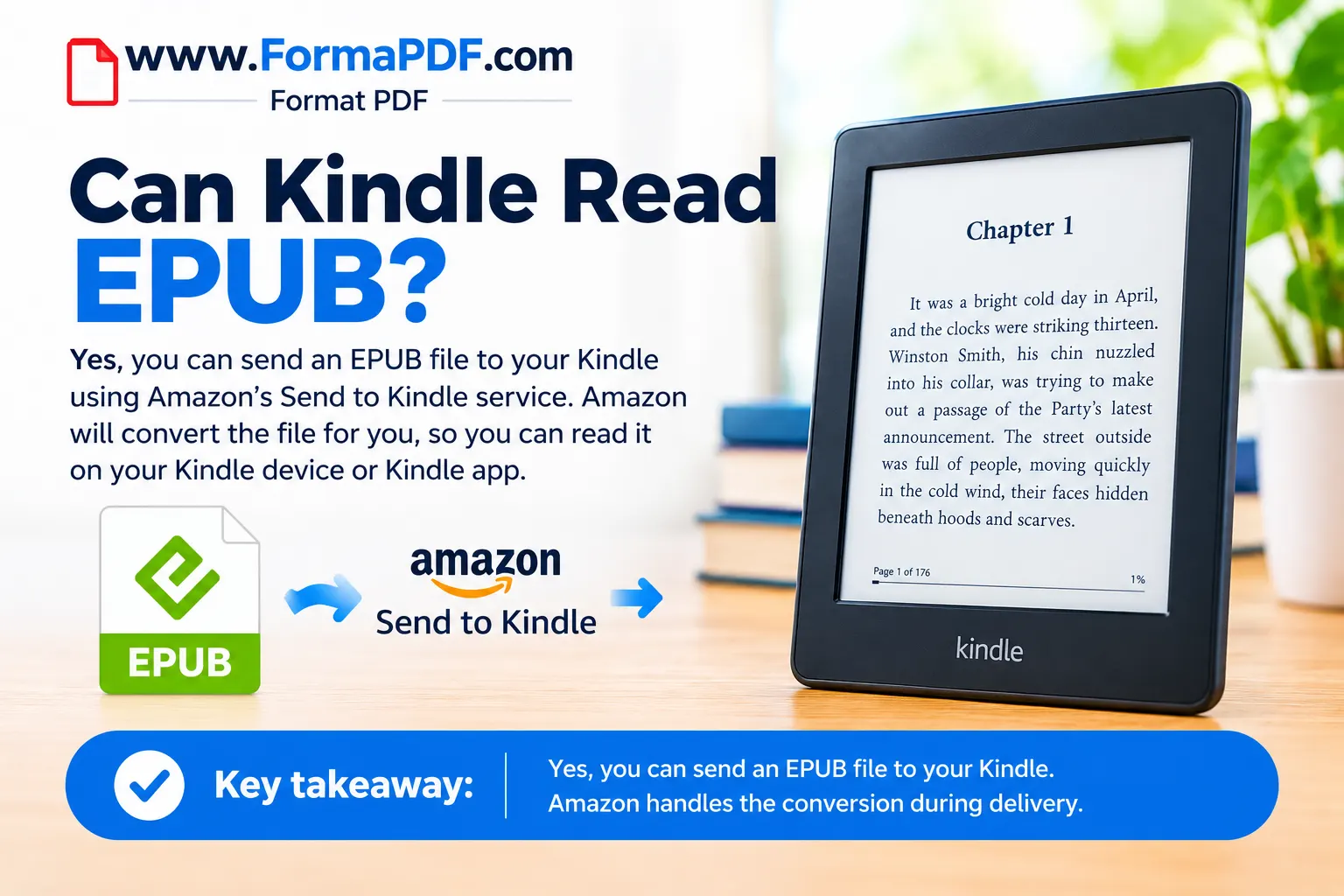
Key takeaway: Yes, you can send an EPUB to Kindle using Amazon's Send to Kindle service. Amazon processes the EPUB before delivering it to a compatible Kindle device or app.
The important point is that Send to Kindle sits between your EPUB file and your Kindle library. You submit the EPUB, Amazon processes it, and the resulting book is delivered to your compatible Kindle device or app.
Does Kindle Read EPUB Format?
EPUB isn't Kindle's native ebook format, so a Kindle device won't open an EPUB file directly if you try to load it without going through Send to Kindle first. What makes EPUB usable on Kindle is the processing that happens during delivery, not something the device does on its own.
In practice, this distinction rarely matters to the average reader. You submit the file through Send to Kindle, Amazon processes it, and the book can appear in your Kindle library. The distinction mainly matters when you are trying to load an EPUB file directly onto a Kindle without using Send to Kindle.
Can You Read EPUB Books on Kindle?
Yes, many EPUB files can be read on Kindle through Amazon's Send to Kindle service. You can submit the EPUB directly without manually converting it first, although some files may not be accepted or processed because of file restrictions.
EPUB files with digital rights management (DRM) may not be accepted or fully processed by Send to Kindle, depending on where the file came from and what type of protection it uses. If an EPUB fails to process, checking whether it has DRM is one of the first things worth checking.
How to Read an EPUB File on Kindle
The process is short:
- Check the file. If it came from outside Amazon, be aware that DRM-protected files may not be accepted or processed, depending on the source and the type of protection involved.
- Send it through Send to Kindle. Use email, the Send to Kindle app, or the web uploader. No manual conversion is needed beforehand.
- Open it on your Kindle. Once processed, the book shows up in your library like any other title.
If you'd rather skip sending the file to a device altogether, you can also open an EPUB directly in a browser using Format PDF's online EPUB reader, which reads the file as-is without any conversion or transfer step.
How to Send an EPUB File to Kindle
Amazon provides a few ways to deliver an EPUB file to a Kindle device or the Kindle app:
- Email: Attach the EPUB to an email and send it to your device's Kindle email address, found in your Amazon account under Devices. The sending address usually needs to be approved in your account settings first.
- Send to Kindle app: Amazon's desktop app lets you upload an EPUB file directly for delivery.
- Send to Kindle website: A browser-based uploader that works without installing anything.
Whichever method you use, Amazon processes the EPUB and delivers it to the Kindle device or app you selected.
Does Kindle Convert EPUB Files?
The Kindle device itself doesn't perform any conversion. That work happens through Send to Kindle before the file reaches your device or app. This matters because the quality of the result depends on how well Amazon's system processes your particular file, not on anything happening on the device.
Files with straightforward formatting and standard chapter structure tend to come through cleanly. EPUB files with more complex layouts, such as heavy custom styling or unusual page structures, can occasionally lose some formatting along the way. If you're sending a file like that, it's worth checking the result once it arrives.
What to Do If Your EPUB File Does Not Open on Kindle
If an EPUB file you sent isn't showing up or isn't displaying correctly, a few things are worth checking first:
- DRM protection. Depending on the source, files with DRM from outside Amazon may not be accepted or fully processed by Send to Kindle.
- Email delivery. If you used the email method, confirm the sending address is on your approved list in your Amazon account settings.
- File size. Send to Kindle has size limits that can vary by delivery method, so a large file may need to be sent a different way.
- Formatting after processing. Complex layouts don't always come through perfectly, which can result in a file that opens but looks different than expected.
Can You Read EPUB Without a Kindle?
Yes. EPUB is supported natively by several other platforms, including Apple Books, Kobo ereaders, Google Play Books, and most third-party ereader apps on Android and desktop.
If you just want to open an EPUB file quickly without sending it anywhere or waiting on any processing, reading it directly in a browser is often the fastest option, since nothing needs to be transferred first.
Frequently Asked Questions
Does Kindle support EPUB format?
Kindle supports EPUB files through Amazon's Send to Kindle service, which processes the file before delivering it to your Kindle library.
Does Kindle automatically convert EPUB, or do I need to do it myself?
Amazon handles the processing automatically when you upload or email the file through Send to Kindle. You don't need to convert the EPUB yourself beforehand.
Can I read EPUB books on the Kindle app the same way as on a Kindle device?
Yes. EPUB files can be sent to the Kindle app through Amazon's Send to Kindle service. After Amazon processes the file, it can appear in your Kindle library and sync across compatible devices and apps.
Will every EPUB file work with Send to Kindle?
Many EPUB files can be processed successfully, although compatibility can vary depending on the file. DRM-protected EPUBs may not be accepted or fully processed, and complex or unusual formatting can sometimes change during processing.

Qasir Mehmood
CEO / Co-Founder
Format PDF helps users handle their documents with confidence. From converting files to editing, merging, splitting, compressing, and securing PDFs, our online tools are designed for speed, quality, and convenience. Founded by Qasir Mehmood, CEO, we continue to build solutions that save time and improve productivity.