How To Black Out Text In PDF Files
There's no shortage of reasons people need to hide part of a document before sending it along. Some of the most common situations:
How To Black Out Text In PDF Files
At some point, almost everyone needs to hide part of a document before sharing it. Maybe it's a bank statement with an account number you don't want floating around, a contract with a clause meant for internal eyes only, or a form with someone else's personal details on it. Blacking out text sounds simple, and in theory it is, but there's a right way and a wrong way to do it, and the wrong way can leave the "hidden" information sitting right there underneath a black box, fully readable to anyone who knows where to look.
This guide covers everything you need to know: what redaction actually means, why people need it, how to do it properly, and what to watch out for so you don't accidentally share something you meant to hide.
What Does It Mean To "Redact Text" In PDFs?
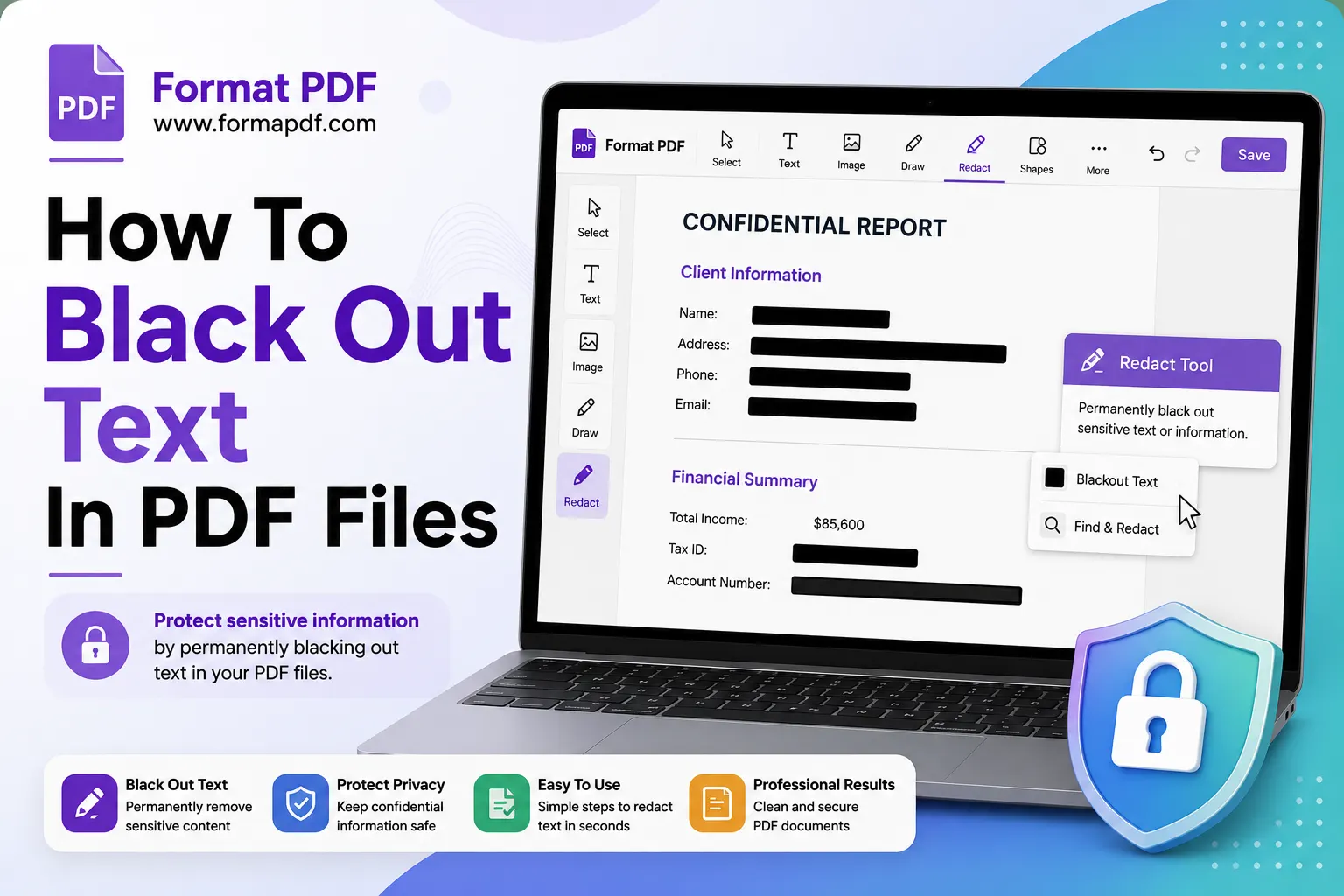
Redacting text means permanently removing sensitive information from a document so it can no longer be read, copied, or recovered, not just visually covering it up. True redaction deletes the underlying text data entirely. A properly redacted PDF doesn't just look blank in that spot, the information is genuinely gone from the file.
This is different from simply drawing a shape over a paragraph. If the text is still there underneath, technically hidden but not removed, that's not redaction, it's just a visual cover. The distinction matters more than most people realize, and we'll get into exactly why in the next few sections.
Why Might You Need To Black Out Text?
There's no shortage of reasons people need to hide part of a document before sending it along. Some of the most common situations:
- Personal information like phone numbers, addresses, or ID numbers that don't need to be visible to everyone who sees the file.
- Financial details on bank statements, invoices, or tax documents shared for a specific limited purpose.
- Legal documents where certain clauses are confidential or only relevant to specific parties.
- Medical records that need to be shared for one reason but contain unrelated sensitive history.
- Business documents with pricing, client names, or internal notes that shouldn't leave the company.
- Screenshots or scanned forms where someone else's data appears alongside your own.
Basically, anytime a document contains more than what the recipient actually needs, blacking out the extra parts is the responsible move.
Are "Black Out Text" And "Redact Text" The Same Thing?
Not exactly, though people use the terms interchangeably in everyday conversation. "Blacking out" text usually refers to the visual act of covering text with a black bar or box. "Redacting" refers to the full process of permanently removing that information from the document so it can't be recovered.
Here's the practical difference: you can black out text without actually redacting it. If you just place a black rectangle over a sentence using a basic drawing tool, the original text often remains in the file's data, just hidden behind the shape. Anyone who copies the text, opens the file in certain readers, or uses basic extraction tools can potentially pull the "hidden" text right out.
Proper redaction means the text itself is deleted, not just covered. When people ask how to redact a PDF, what they usually want is the black-out look with the actual removal behind it, not just one or the other.
How To Black Out Text In A PDF
Here's a practical process that covers both the visual and the removal side of things.
- Open your file in Edit PDF Online. This lets you interact directly with the existing text and layout of your document.
- Identify what needs to go. Read through the document carefully and note every instance of the sensitive information, including anywhere it might repeat, like a name that appears on multiple pages.
- Remove the text itself first. Using Replace Text in PDF, you can select the sensitive text and delete or overwrite it directly, rather than just covering it visually. This is the step that actually gets rid of the underlying data.
- Cover the area visually if needed. For a clean, professional look, use Add Stroke to PDF or Draw on PDF to place a solid black box over the now-empty space, matching the classic redacted look people expect.
- Double check by selecting text near the redaction. Try highlighting or selecting the area around your black box to confirm nothing sensitive is still selectable underneath.
- Flatten the file if you want extra certainty. Converting the finished document with PDF to Image turns each page into a flat image, meaning there's no selectable text left at all, sensitive or otherwise. This is a common extra step for anyone sharing a highly sensitive document.
- Lock the file if it's going somewhere sensitive. Once redacted, adding a password with Lock PDF adds another layer of control over who can open and edit it further.
Is Redacting A PDF Safe?
Redacting a PDF is safe as long as it's done properly, meaning the actual text is removed, not just visually covered. This is the single biggest mistake people make, and it's worth repeating: a black box sitting on top of untouched text is not a safe redaction.
There have been well-documented cases, including in government and legal settings, where "redacted" documents were shared publicly and the hidden text was later recovered simply by copying and pasting, or by removing the black shape in an editor. That's not a redaction failure caused by hackers or anything technical, it's usually just someone using a drawing tool instead of actually deleting the text.
To keep things genuinely safe:
- Always remove the underlying text, not just cover it.
- Flatten sensitive pages to an image format when the stakes are high.
- Test your redaction before sending the file anywhere, by trying to select or copy text in the redacted area.
- Avoid sending the original, unredacted file alongside the redacted one, even by accident, since some people forget which version they attached.
Can You Undo Redactions Once You've Made Them?
This depends entirely on how the redaction was done. If you only covered text with a black shape without removing the underlying data, then yes, that can often be undone or bypassed, whether intentionally or by accident, which is exactly the risk described above.
If the text was properly deleted using a text removal step rather than just a visual cover, then no, it can't be undone once the file is saved and the original working copy is gone. This is by design. Real redaction is meant to be permanent, since the whole point is making sure the information genuinely can't come back.
This is why it's worth keeping a separate, unredacted master copy of any document you redact, stored somewhere secure and not sent to anyone. That way, if you ever need the original information again for your own records, you're not stuck trying to reverse a redaction that was never meant to be reversible.
How Can You Undo Redactions If You Make A Mistake?
If you've properly redacted a file and realize afterward you removed something you didn't mean to, the fix isn't undoing the redaction itself, it's going back to your original, unredacted version and redoing the process correctly.
Steps to recover from a redaction mistake:
- Locate your original file, the one before any edits were made. This is why keeping a backup copy before you start redacting is genuinely useful.
- Reopen it in Edit PDF Online and start the redaction process again, this time being more careful about which sections you remove.
- If you no longer have the original, and the only copy you have is already redacted, the information is likely gone for good if the text was properly deleted rather than just covered. This is exactly why permanent redaction should be treated as a final step, not something to do casually before you're sure.
If you only covered the text with a black box rather than deleting it, you can simply remove that shape and the original text will still be there underneath, though at that point it was never truly redacted in the first place.
Why Can't I Redact A PDF?
If you're running into trouble trying to redact a document, it usually comes down to one of a few common issues:
- The PDF is a scanned image, not actual text. If your document was scanned from paper rather than created digitally, there's no selectable text to remove in the first place, since the whole page is essentially one image. In this case, you'd black out the section visually rather than deleting text, since there's no text data to delete.
- The file is password protected, which can block editing tools from making changes until it's unlocked. If this applies to you, use Unlock PDF first, then proceed with your edits.
- The text is part of a complex layout, like a table or a form field, which can sometimes make individual pieces harder to select cleanly. Zooming in and working section by section usually solves this.
- The file is corrupted or has formatting issues. Running it through Repair PDF first can resolve underlying file problems that are getting in the way of editing.
Alternative Ways To Redact Text In PDFs
If a direct text-removal approach isn't working for your specific file, there are a few other routes that get you to the same result.
Convert to image first, then black out. If your document is giving you trouble with selectable text, converting it entirely to image format with PDF to Image removes the text layer completely from the start. From there, you can draw solid black boxes over sensitive areas using Draw on PDF, and since there's no text underneath anymore, there's nothing to accidentally reveal.
Recreate the page. For short documents, sometimes it's faster to retype the content you want to keep into a new file using Text to PDF, simply leaving out the sensitive parts entirely rather than covering them up. This guarantees nothing sensitive was ever included in the shared version.
Crop out entire sections. If the sensitive information is isolated to one part of the page, like a header or footer, Crop PDF can remove that section of the page entirely rather than blacking it out, which works well when the surrounding content isn't needed either.
Split the document. If sensitive information is contained on specific pages rather than scattered throughout, Split PDF lets you separate those pages out entirely and only share the ones that are safe to send.
Whichever method fits your situation, the goal stays the same: make sure that what you're sharing only contains what you actually intend to share, and confirm it before it leaves your hands.

Qasir Mehmood
CEO / Co-Founder
Format PDF helps users handle their documents with confidence. From converting files to editing, merging, splitting, compressing, and securing PDFs, our online tools are designed for speed, quality, and convenience. Founded by Qasir Mehmood, CEO, we continue to build solutions that save time and improve productivity.