How To Compress A PDF On Mac
Our Compress PDF tool was built around the exact problem most Mac users run into: needing a smaller file fast, without watching a scanned document turn into a blurry mess.
How To Compress A PDF On Mac
Large PDF files have a way of showing up at the worst possible time. You're trying to email a portfolio and it bounces back for being too big. A job application form caps uploads at 5MB and your scanned documents blow right past it. Or you're just trying to free up space on your Mac and notice a folder full of PDFs eating up gigabytes for no good reason. Compressing a PDF fixes all of this, and on a Mac, there are more ways to do it than most people realize.
This guide covers what actually happens when you compress a PDF, which programs can do it on a Mac, and how our own Compress PDF tool handles it without the quality loss that gives compression a bad reputation.
What You Need To Know About Compressing A PDF On Mac
Before you compress anything, it helps to understand what's actually happening to your file, since not all compression is created equal.
Compression mostly targets images. Most of a PDF's file size usually comes from embedded images, scanned pages, or high-resolution graphics rather than the text itself. Good compression tools reduce image quality just enough to shrink the file without making it noticeably worse to the eye.
There's a real tradeoff between size and quality. Compress too aggressively and you'll start to see blurry text in scanned documents or pixelated images. The best tools let you control how much compression you're applying, so you can balance a smaller file against how it looks.
Text-heavy PDFs compress differently than image-heavy ones. A PDF that's mostly typed text, like a contract or resume, is usually already small and won't shrink much further. A PDF full of scanned pages or photos has a lot more room to compress since images carry far more data than plain text.
Mac's built-in tools are limited. macOS has a way to reduce PDF file size through Preview, but it applies a fairly aggressive, one-size-fits-all compression that can noticeably degrade image quality, especially on scanned documents or anything with fine detail. It works in a pinch, but it doesn't give you much control over the result.
Compression doesn't change the content. Compressing a file only affects how efficiently the data is stored, not what's actually on the pages. Your text, layout, and formatting stay exactly the same, only the file size changes.
Which Programs Allow You To Compress A PDF On Mac
There are a handful of solid ways to compress a PDF on a Mac, depending on how much control you want over the result.
Preview (built into macOS). Every Mac comes with Preview, and it includes a basic compression option under File > Export, using the Quartz Filter set to "Reduce File Size." It's fast and doesn't require installing anything, but the compression level is fixed, so you can't fine-tune how much quality you're trading away. For quick, low-stakes compression, it does the job.
Online compression tools. Browser-based tools skip the need to install anything and work the same way regardless of whether you're on a Mac, Windows machine, or even a tablet. Our own Compress PDF tool falls into this category, and it's built specifically to avoid the heavy-handed quality loss you get from Preview's built-in option.
Third-party desktop apps. Paid software like Adobe Acrobat Pro offers more granular compression settings, including control over image resolution and font embedding. These tools are solid if you're already paying for a subscription, but they're overkill if compressing a file is something you only need occasionally.
Command line tools. For anyone comfortable in Terminal, tools like Ghostscript can compress PDFs with a fair amount of control over the output. This route works well for batch processing a lot of files at once, but it has a learning curve that most people don't need to deal with for a one-off task.
For most people compressing a file every now and then, a browser-based tool hits the sweet spot between convenience and control, without installing software you'll rarely use.
"Compress PDF" by Format PDF
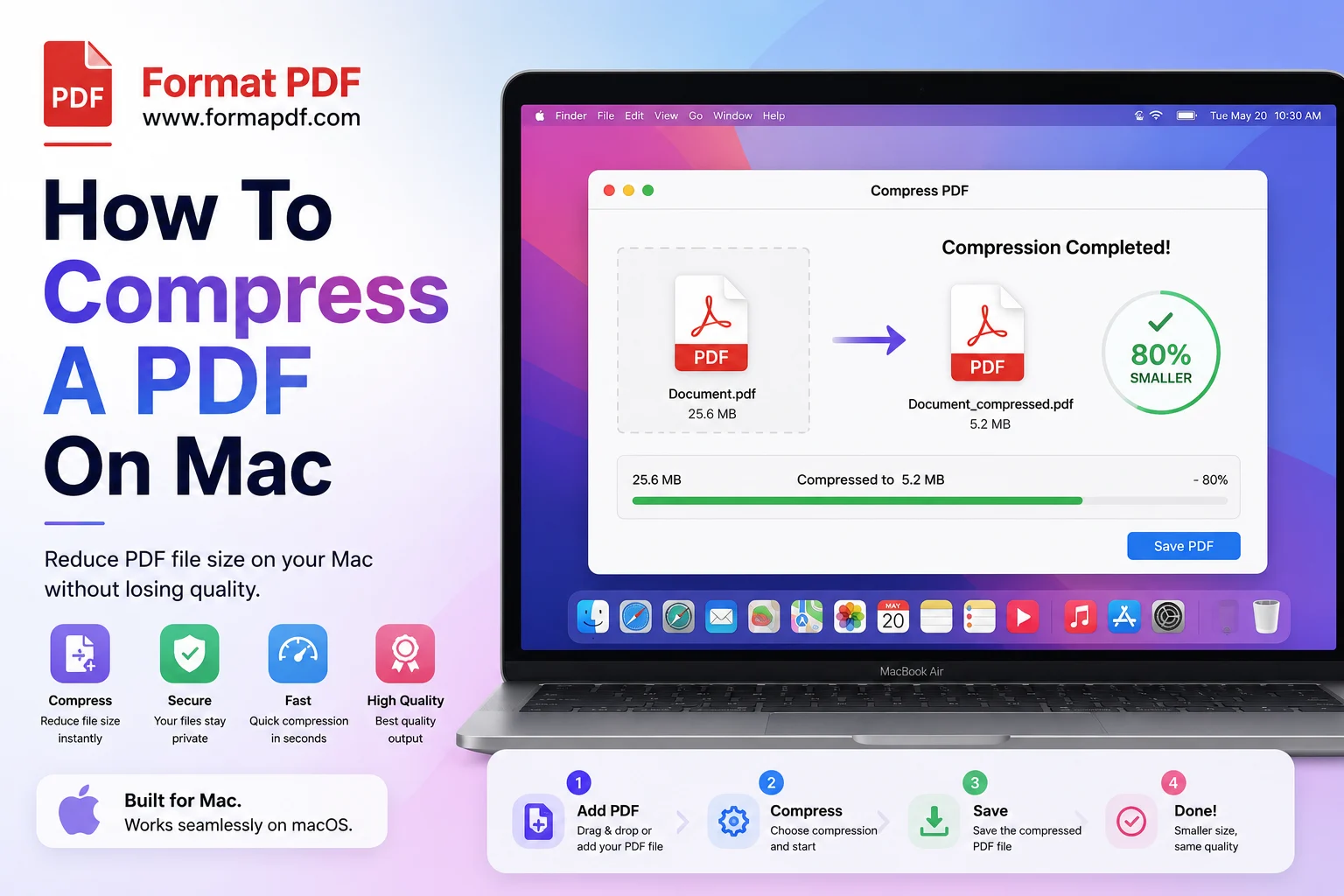
Our Compress PDF tool was built around the exact problem most Mac users run into: needing a smaller file fast, without watching a scanned document turn into a blurry mess.
Here's how it works:
- Upload your file from anywhere on your Mac, whether that's Finder, Downloads, or a cloud drive.
- Let the tool analyze the content. It identifies which parts of the file are taking up the most space, usually images and scanned pages, and compresses those specifically rather than applying a blanket reduction across the whole document.
- Download your compressed file, ready to email, upload, or store.
A few things that make it a better fit than Preview's built-in option for most situations:
- No installation and no macOS version restrictions. It works directly in your browser, so it doesn't matter whether you're on the latest macOS or a machine that's a few updates behind.
- Better balance between size and quality, especially for scanned documents where Preview's compression tends to introduce noticeable blur.
- Works the same way across devices, so if you need to compress a file from your phone later, it's the same process.
Once your file is compressed, it's often the natural next step in a bigger workflow. If you're sending a compressed document that also needs a signature, Sign PDF picks up right where compression leaves off. If you're combining a few smaller files into one, Merge PDF Online handles that after compression so the combined file stays as small as possible. And if the original PDF has quality or corruption issues you noticed along the way, running it through Repair PDF first can clean things up before you compress it.
Compressing a PDF on a Mac doesn't have to mean settling for whatever Preview gives you, or installing software for a task you'll do a handful of times a year. A browser-based tool built specifically for the job gets you a smaller file without the quality hit, and it works the exact same way whether you're on a Mac, a PC, or your phone.

Qasir Mehmood
CEO / Co-Founder
Format PDF helps users handle their documents with confidence. From converting files to editing, merging, splitting, compressing, and securing PDFs, our online tools are designed for speed, quality, and convenience. Founded by Qasir Mehmood, CEO, we continue to build solutions that save time and improve productivity.