How To Edit A PDF File On A Mobile
You can edit a PDF file from your phone or tablet just as easily as from a computer, once you know which tools handle it well and what to expect from a smaller screen.
How To Edit A PDF File On A Mobile
More people now open, read, and edit PDFs on their phone than on a laptop, and it makes sense. You get a work email with an attachment while you're out, a form needs a signature before a deadline, or you just want to fix a typo on a document without waiting until you're back at your desk. The problem is that phones weren't originally built with PDF editing in mind, so a lot of people assume it's more complicated than it actually is.
It isn't. You can edit a PDF file from your phone or tablet just as easily as from a computer, once you know which tools handle it well and what to expect from a smaller screen. This guide walks through exactly how to do it, what to know beforehand, and which tools are worth using.
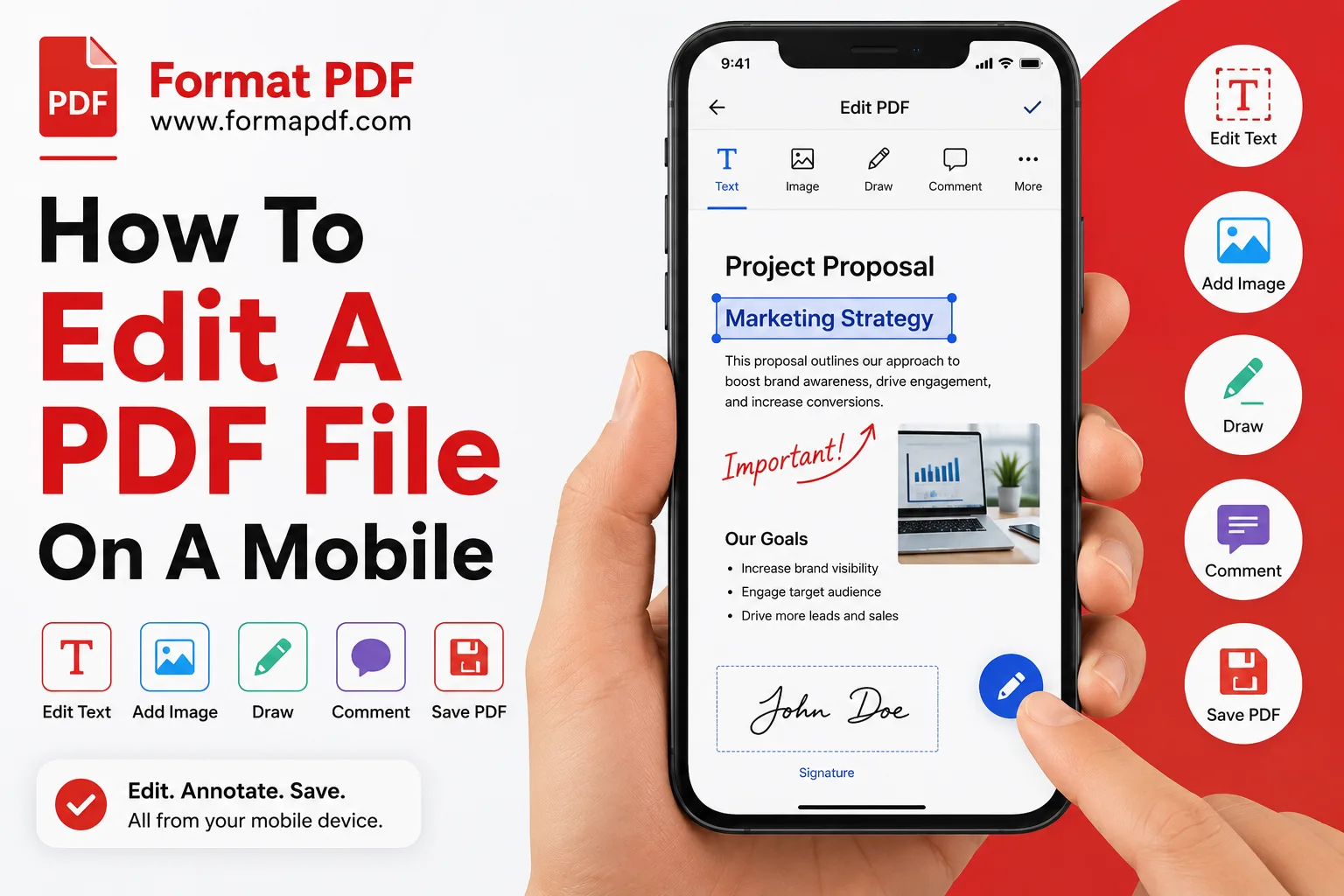
Step By Step: How To Edit A PDF File On A Mobile
Here's a straightforward process that works whether you're on iOS or Android, since browser-based tools work the same way on both.
-
Open your mobile browser (Safari, Chrome, or whichever you use) and go to Edit PDF Online. There's nothing to install, which matters if you're low on storage or don't want another app sitting on your home screen.
-
Upload the PDF you want to edit. You can pull it from your phone's local storage, a cloud drive, or sometimes directly from an email attachment depending on how your phone handles file sharing.
-
Zoom in before you start editing. This is the one step people skip and then regret. Pinch to zoom into the section you want to change so you're tapping accurately, especially if the text is small.
-
Tap the text or area you want to change. Most tools will let you select existing text and retype it, or add a new text box if you're inserting something new.
-
Add any extra elements you need. This might be a signature using Sign PDF, a highlighted section using Highlight PDF, or a quick note drawn directly on the page with Draw on PDF.
-
Review the whole document before saving. It's easy to miss a shifted line or an overlapping edit on a small screen, so scroll through the full file, not just the section you changed.
-
Save or download the updated file. From there you can send it straight from your phone, whether that's over email, WhatsApp, or a cloud link.
That's the whole process for most simple edits. If your changes are more involved, like restructuring a document or rewriting several pages, it's worth reading the next section first.
What You Need To Know About Editing A PDF File On A Mobile
A few things make mobile PDF editing different from doing it on a desktop, and knowing them upfront saves a lot of frustration.
Screen size changes what's realistic. Small fixes, like correcting a name, adjusting a date, or adding a signature, work well on mobile. Big structural changes, like reformatting an entire resume or rebuilding a multi-page report, are usually faster on a computer where you can see the whole layout at once.
Not all PDFs are equally editable. If your PDF is a scanned image rather than actual text, editing it directly won't work the same way, since there's no selectable text to change. In that case, you're better off treating it as an image file and working from there, or converting it first.
File format matters for bigger jobs. If you're doing more than a quick touch-up, it's often easier to convert the file to something editable, make your changes, and convert it back. PDF to Word works well for this on mobile since most phones have some way to open and edit a Word file, and Word to PDF converts it back once you're done.
Mobile data and file size. If you're editing on a mobile connection rather than Wi-Fi, large PDFs with lots of images can be slow to upload or download. Running the file through Compress PDF beforehand can make the whole process noticeably faster.
Save your work as you go. Unlike desktop software with autosave built in, some mobile browser tabs can close unexpectedly, especially if you switch apps mid-edit. Save or download your progress rather than leaving a half-finished edit open in a background tab.
Which Programs Allow You To Edit A PDF File On A Mobile
You don't need a dedicated app to edit PDFs on your phone, though there are a few different approaches depending on what you're trying to do.
Browser-based editors. This is the simplest option for most people, since it works directly in Safari or Chrome without installing anything. Edit PDF Online covers text edits, shapes, and repositioning content, all from a mobile browser.
Text replacement tools. If you only need to swap out a specific word, name, or number without touching the rest of the layout, Replace Text in PDF is a faster option than opening a full editor.
Signature tools. Signing documents on the go is one of the most common mobile PDF tasks. Sign PDF lets you draw or upload a signature and place it exactly where it's needed.
Conversion tools. For heavier edits, converting the file first is usually easier than fighting with a small editing screen. PDF to Word turns your PDF into an editable document, and once you're finished, Word to PDF turns it back into a shareable PDF.
Page management tools. Sometimes editing means removing or rearranging pages rather than changing text. Delete PDF Pages and Merge PDF Online both work fine from a phone browser if you need to clean up or combine files before sending them.
Image insertion. Need to drop a photo, logo, or scanned signature onto a page? Add Image to PDF handles that without needing a separate photo editing app.
Reading and checking your work. Once you're done editing, it's worth opening the file in a PDF Reader Tool to check everything looks right before sending it, since mobile editing screens don't always show the full page the way a reader does.
Final Thoughts
Editing a PDF on your phone doesn't require downloading a heavy app or waiting until you're back at a desk. For quick changes like fixing a typo, adding a signature, or swapping a date, a browser-based tool handles it in a couple of minutes. For anything bigger, converting to Word, making your changes, and converting back tends to be the smoother path, even on a small screen. Either way, the key habit is the same one that applies on desktop: always review the full document before you send it.

Qasir Mehmood
CEO / Co-Founder
Format PDF helps users handle their documents with confidence. From converting files to editing, merging, splitting, compressing, and securing PDFs, our online tools are designed for speed, quality, and convenience. Founded by Qasir Mehmood, CEO, we continue to build solutions that save time and improve productivity.