How To Edit A Resume In PDF
Your resume is probably the single most edited document you own. Every job application seems to need a slightly different version
How To Edit A Resume In PDF
Your resume is probably the single most edited document you own. Every job application seems to need a slightly different version, a new phone number, an updated job title, or a tweaked summary at the top. The problem is that most resumes end up saved as PDF files, and PDFs were never really built to be edited the way a Word document is. That's exactly the situation this guide is going to walk you through.
Whether you're applying for your first job or updating a resume you've been using for years, you don't need expensive software to make quick, clean edits. Below, we'll cover what you actually need to know before editing a PDF resume, which programs and tools can help, and how to do it from both a computer and a phone or tablet.
What You Need To Know About Edit Resume In PDF
Before you open your resume file and start clicking around, it helps to understand why PDFs behave the way they do. A PDF is designed to preserve formatting exactly as it was created, which is great when you're sending your resume to a hiring manager and want it to look the same on every device. The downside is that this same feature makes text and layout harder to change once the file is locked into PDF form.
There are a few things worth knowing going in:
- Text-based PDFs (created from Word, Google Docs, or similar tools) are much easier to edit because the actual text is selectable and searchable.
- Scanned PDFs are just images of a page, so editing them usually means retyping the content or using OCR software first.
- Editing directly in a PDF can sometimes shift your layout slightly, especially if you're adding or removing large chunks of text, so it's worth reviewing the file afterward.
- If your resume was originally a Word file, it's often simpler to edit the original and reconvert it, rather than editing the PDF directly.
If you already have the original Word or Google Docs file, the easiest route is often to make your changes there and then use Word to PDF to generate a fresh, clean PDF. But if all you have is the PDF itself, don't worry, there are still good ways to edit it directly.
Which Programs Allow You To Edit Resume In PDF
You don't need Adobe Acrobat or a paid subscription to make basic changes to a resume. Here are the most practical options, depending on what kind of edit you need.
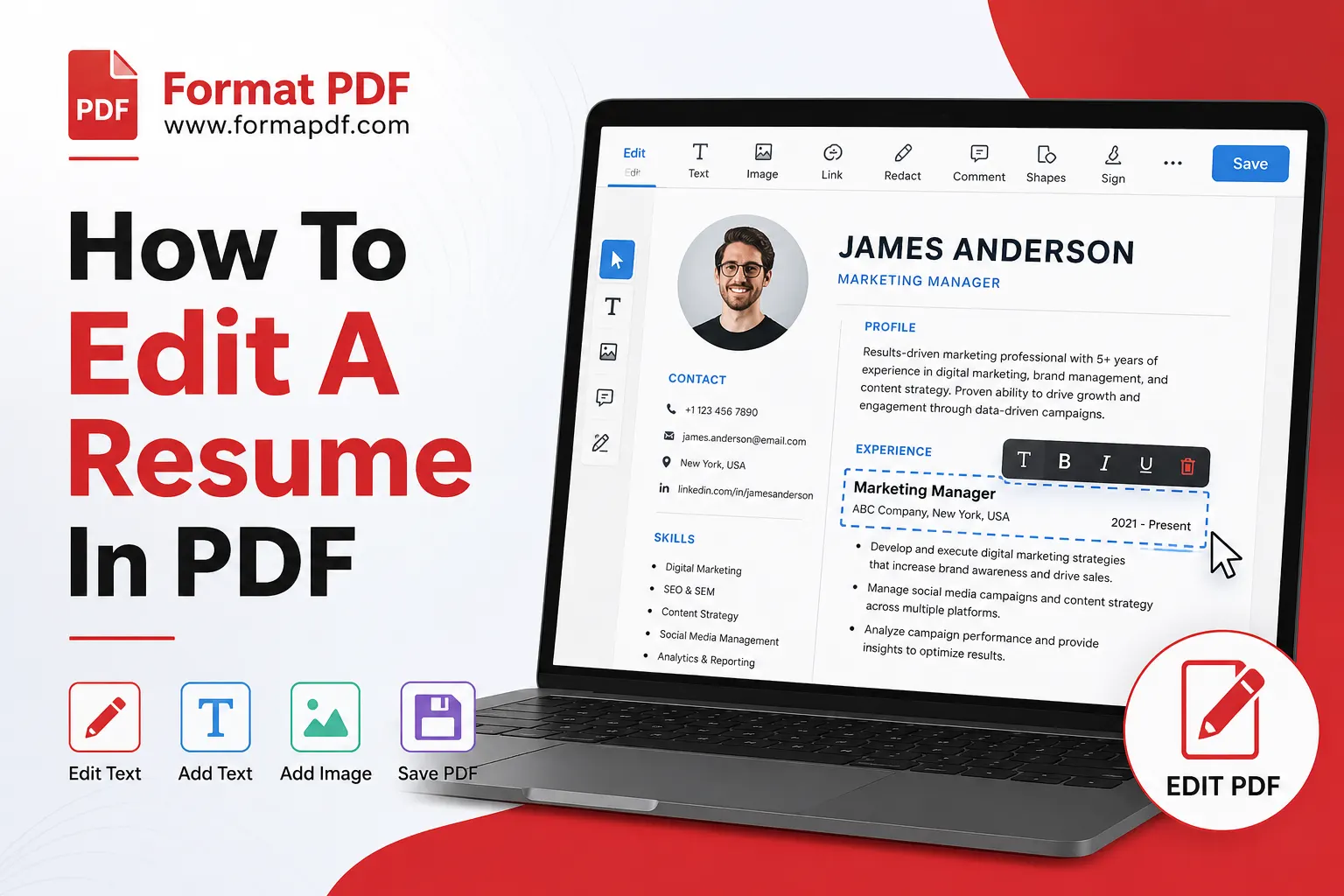
Browser-based PDF editors. For most people, this is the fastest option. A tool like Edit PDF Online lets you open your resume, add or change text, insert shapes, or reposition elements directly in your browser without installing anything. This works well for small updates like changing a phone number, fixing a typo, or adjusting a job title.
PDF to Word conversion. If you need to make heavier edits, like rewriting a whole section or reformatting your layout, it's often easier to convert the file to an editable Word document first. PDF to Word converts your resume into a .docx file you can edit freely in any word processor, and once you're happy with it, you can turn it back into a polished PDF with Word to PDF.
Text replacement tools. If you only need to swap out specific words or phrases, like updating your name after a career change or correcting a company name, Replace Text in PDF can handle that without touching the rest of your layout.
Signature tools. Some job applications or reference letters ask for a signed resume or cover letter. Sign PDF lets you add a digital signature without printing and scanning anything.
Image and photo insertion. If your resume includes a headshot or you need to add a logo, Add Image to PDF makes that simple.
File size tools. Some job portals reject resumes over a certain file size, especially if yours includes images. Compress PDF shrinks the file without noticeably affecting quality.
Once your edits are done, it's worth opening the file one more time in a PDF Reader Tool to check everything looks right before you send it off.
Edit Resume In PDF From The PC
Editing a resume on a desktop or laptop gives you the most control, since you've got a full screen, a mouse, and a proper keyboard to work with. Here's a simple process that works for most people:
- Open your resume in Edit PDF Online by uploading the file from your computer.
- Click on the text you want to change. Most browser-based editors will let you click directly on a line of text, select it, and type over it.
- Adjust formatting as needed. If font size or spacing looks off after editing, small manual tweaks usually fix it.
- Add any extra elements, like a new bullet point, a link to your portfolio using Add a Link to a PDF, or a highlight on a key achievement with Highlight PDF.
- Save and review the final file. Opening it once more in a reader before sending it out is a good habit, since small formatting shifts can be easy to miss on the editing screen.
If your resume needs a bigger overhaul, converting it to Word first tends to be faster than trying to rebuild a layout inside a PDF editor. Use PDF to Word, make your changes in a word processor where you have full formatting control, then convert back with Word to PDF so it's ready to submit again.
For anyone who applies to multiple jobs with slightly different resume versions, this Word-first approach is usually less frustrating in the long run, since you can keep one master document and export a new PDF each time you tailor it.
Edit Resume In PDF From The Smartphone Or Tablet
Not everyone is near a laptop when they spot a job listing worth applying to. The good news is that editing a PDF resume from your phone or tablet is entirely possible, it just takes a slightly different approach since you're working with a smaller screen and touch input instead of a mouse.
Here's how to handle it on mobile:
- Open your browser on your phone and go to Edit PDF Online. Most modern PDF tools are built to work directly in mobile browsers without needing an app.
- Upload your resume from your phone's storage, or directly from cloud storage if that's where you keep your files.
- Tap on the text you want to edit. Zooming in with a pinch gesture first makes it much easier to tap accurately and avoid editing the wrong line.
- Type your changes using your phone's keyboard, then tap outside the text box to confirm.
- Download or save the updated file once you're happy with it.
For quick fixes like a phone number update or a small typo, editing directly on your phone works fine. But if you're making major changes, like rewriting your summary or reorganizing your work history, it's usually worth waiting until you have access to a computer, mainly because small screens make it harder to catch formatting issues.
One thing that helps on mobile: if you ever need to double check how your resume actually looks once it's edited, converting a page to an image with PDF to JPG lets you view it exactly as a hiring manager would see it, which can be easier to review than scrolling through a PDF viewer on a small screen.
Final Thoughts
Editing a resume in PDF form doesn't have to mean starting over from scratch or hunting for a program to install. Between browser-based editors for small changes and PDF-to-Word conversion for bigger rewrites, most people can update their resume in a few minutes from whatever device they happen to have on hand. The key is picking the right tool for the size of the edit you're making, and giving the file a final review before you hit send.

Qasir Mehmood
CEO / Co-Founder
Format PDF helps users handle their documents with confidence. From converting files to editing, merging, splitting, compressing, and securing PDFs, our online tools are designed for speed, quality, and convenience. Founded by Qasir Mehmood, CEO, we continue to build solutions that save time and improve productivity.