How to Edit PDF on Mac
how to edit PDF on Mac using Preview or online tools. Step-by-step guide to edit text, images, signatures, and forms fast and free with Format PDF.
If you own a Mac, chances are you deal with PDF files almost every day. Maybe it's a contract you need to sign, an invoice you have to update, or a resume that needs a quick tweak before you send it off. Whatever the reason, knowing how to edit PDF on Mac can save you a lot of time and frustration.
The tricky part is that PDFs were never really designed to be edited. They were built to look the same no matter what device or software opens them, which is great for sharing but not so great when you actually need to change something. Still, Mac users have more options than they might realize, from built-in tools to online editors that work right in the browser.
In this guide, we'll walk through everything you need to know. We'll cover whether macOS actually supports PDF editing, the different methods you can use, a simple step-by-step process, and some handy tips to make the whole thing easier. By the end, you'll know exactly how can i edit a pdf document on a mac without any guesswork.
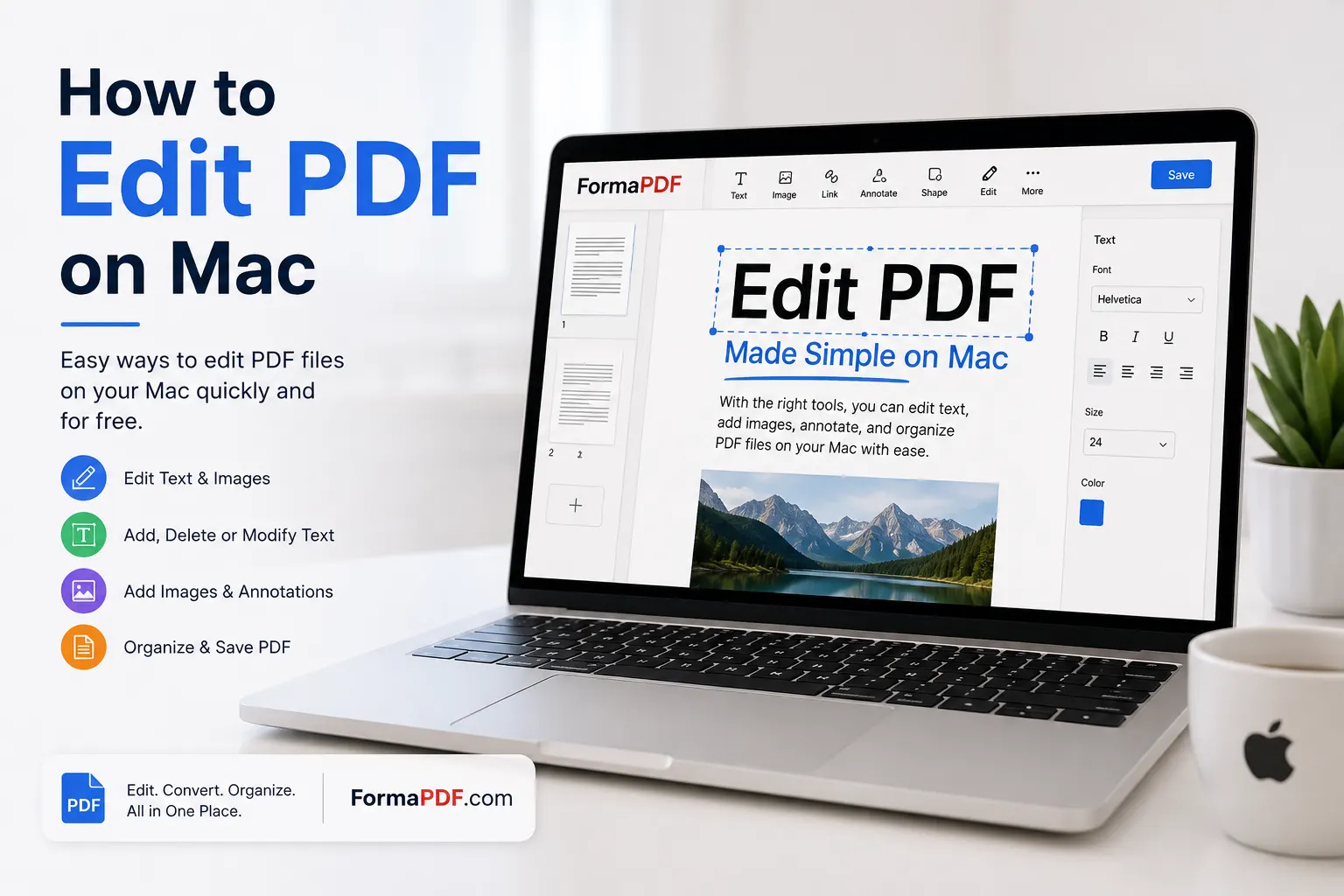
Can You Edit a PDF on Mac?
Yes, you can edit a PDF on Mac, and honestly, it's easier than most people think. macOS comes with a built-in app called Preview that lets you make basic changes right out of the box. No need to download anything extra.
That said, Preview does have its limits. It's great for adding text boxes, signing documents, and highlighting content, but it's not built for heavy-duty editing like changing existing paragraphs or reformatting entire pages. If your PDF has a typo buried in the middle of a paragraph, Preview usually can't fix that cleanly.
This is where other tools come in. Depending on what you need to do, you might reach for:
- Apple's Preview app for quick, simple edits
- Online PDF editors for more flexible, browser-based editing
- Professional PDF software for advanced formatting and document management
So the short answer to how can you edit a pdf file on a mac is that it depends on how deep the changes need to go. Simple stuff, use Preview. Anything more involved, and you'll want a dedicated editor.
Methods to Edit a PDF on Mac
There's no single "correct" way to edit a PDF. It really comes down to what you're trying to accomplish. Let's break down the main methods.
Using Preview
Preview is the quiet workhorse of macOS. Most people don't even realize how much it can do until they actually open a PDF and start poking around the toolbar. It can add text, draw shapes, insert signatures, and even fill out simple forms.
Using Online PDF Editors
Online editors have become the go-to choice for a lot of people, and it's not hard to see why. You don't need to install anything, they work on any device with a browser, and most of them are free for everyday tasks. This is often the fastest route when you're asking yourself how do i edit a pdf document on a mac without cluttering your hard drive with more software.
Using Professional PDF Software
If you're working with PDFs constantly, whether for business contracts, reports, or client documents, a full-featured desktop application might be worth the investment. These tools offer advanced features like batch editing, OCR for scanned documents, and detailed formatting control.
Editing Text
Changing the actual words in a PDF is usually the trickiest part. Preview can add new text boxes on top of the page, but it can't edit the original text that's already there. For that, you'll need an online tool or software built specifically for text editing within PDFs.
Editing Images
Sometimes you need to swap out a logo, remove a photo, or resize a graphic. Some editors let you click directly on an image inside the PDF and replace or delete it, similar to editing a slide in a presentation.
Adding Signatures
This is one of the most common reasons people open a PDF editor in the first place. You can sign using your trackpad, your iPhone's camera to capture a handwritten signature, or by typing your name in a cursive-style font.
Filling Forms
Job applications, tax documents, and registration forms are often shared as PDFs with fillable fields. Both Preview and most online editors let you click into these fields and type your information directly, no printing required.
Highlighting Text
If you're reviewing a document, highlighting is a simple way to flag important sections. Most editors, including Preview, offer a highlight tool with a few color options.
Annotating PDFs
Beyond highlighting, annotation tools let you add comments, sticky notes, arrows, and underlines. This is especially useful when you're collaborating with someone else on a document and need to point out specific changes.
Step-by-Step Guide
Here's a simple process you can follow whether you're using Preview or an online tool.
- Open the PDF. Double-click the file to open it in Preview, or upload it to your chosen online editor.
- Choose your editing tool. Look for the toolbar, usually at the top of the screen, and select the option you need, whether that's text, signature, or annotation.
- Make your edits. Click on the area of the document you want to change and add your text, image, or markup.
- Review the document. Scroll through the entire PDF to double-check that everything looks right before saving.
- Save or export the file. Save your changes, and if needed, export the file as a new PDF so your original stays untouched.
- Share or download. Send the finished PDF wherever it needs to go, whether that's an email attachment or a cloud storage link.
That's really all there is to it. Once you've done it a couple of times, the process becomes second nature.
Benefits of Editing PDFs Online
Online PDF editors have grown in popularity for good reason. Here's why so many people prefer them over traditional software:
- No installation needed. You skip the download, setup, and storage space that desktop apps require.
- Works across devices. Whether you're on a Mac, Windows PC, or even a tablet, browser-based tools work the same way everywhere.
- Often free. Many online editors offer their core features at no cost, which is perfect for occasional users.
- Faster updates. Since everything runs in the browser, you always get the latest version without manually updating anything.
- Easy to share. Once you've made your edits, you can often download or share the file directly without extra steps.
For anyone who only edits PDFs now and then, online tools usually make more sense than committing to paid software.
Why Choose Format PDF?
If you're looking for a straightforward answer to how to edit pdf on mac, Format PDF is built exactly for this. It's a free, browser-based platform that lets you edit PDFs without installing a single thing on your Mac.
You can open the Edit PDF Online tool, upload your document, and start making changes right away. Whether you need to fix a line of text, add an image, or drop in a signature, everything happens in your browser, so there's nothing taking up space on your hard drive.
What makes Format PDF a solid choice is how much it covers beyond basic editing. From converting files to organizing pages, it's built as a full toolkit rather than a single-purpose app. And since it works entirely online, it doesn't matter whether you're on a Mac, a Windows laptop, or even switching between devices throughout the day. Your work follows you.
Related PDF Tools
Editing is often just one part of working with PDFs. Depending on what you're doing, you might also need to convert, sign, or organize your files. Format PDF offers a wide range of tools to handle nearly every situation:
If you need to add your name to a document, the Sign PDF tool makes it quick and simple. Working with a scanned form? Try the PDF Reader Tool to view it clearly first.
For document conversions, you can turn a Word file into a PDF using Word to PDF, or go the other way with PDF to Word when you need an editable version. If spreadsheets are more your thing, Excel to PDF and PDF to Excel handle those conversions smoothly.
Need to combine multiple files? The Merge PDF Online tool brings everything into one document. Or if it's the opposite you're after, Split PDF lets you break a large file into smaller sections.
Reviewing a document with a colleague? Use Highlight PDF to mark up important sections, or Draw on PDF to sketch notes directly onto the page. If a file is too large to send by email, run it through Compress PDF first.
Working with images? The Image to PDF tool converts photos into document format, while PDF to JPG does the reverse. And if a document needs extra protection, Lock PDF adds a password in seconds.
Common Mistakes
Even simple tasks like PDF editing come with a few common pitfalls. Here's what to watch out for.
Editing the original file without backing it up. Once you save over the original, there's no going back. Always keep a copy of the unedited version somewhere safe.
Trying to edit text directly in Preview. People often assume they can click into a paragraph and start typing like a word processor. Preview doesn't work that way, and this leads to frustration when the text won't budge.
Ignoring formatting after editing. Adding new text or images can sometimes shift the layout of the page. Always scroll through the whole document afterward to catch anything that looks off.
Uploading sensitive documents to unknown websites. Not every online editor takes privacy seriously. Stick to trusted platforms, especially with financial or personal documents.
Forgetting to save as a new file. If you want to preserve the original, remember to export or "save as" instead of overwriting the file you started with.
Tips
A few small habits can make PDF editing on your Mac much smoother.
- Zoom in before making detailed edits, especially with small text or fine annotations.
- Use keyboard shortcuts in Preview, like Command+K for the markup toolbar, to speed things up.
- Keep your file names organized so you don't lose track of which version is the latest.
- Test your signature placement on a sample page before applying it to an important document.
- Check that your PDF opens correctly on another device after editing, just to be safe.
Frequently Asked Questions (FAQs)
1. Can I edit a PDF on Mac for free? Yes. Preview comes free with every Mac, and tools like Format PDF let you edit online without any cost.
2. Can Preview edit PDF text? Not directly. Preview lets you add new text boxes, but it can't modify text that's already part of the original document.
3. What is the best PDF editor for Mac? It depends on your needs. For quick tasks, Preview works fine. For more detailed editing, an online tool like Format PDF gives you more flexibility.
4. How do I add my signature to a PDF on Mac? Open the file in Preview, click the markup icon, select the signature tool, and either draw it with your trackpad or capture it with your camera.
5. Can I edit scanned PDFs? Yes, though it depends on the tool. Some editors support OCR (optical character recognition), which turns scanned text into editable content.
6. Can I edit password-protected PDFs? You'll need to unlock the file first. Format PDF's Unlock PDF tool can remove the password if you have permission to access the document.
7. How do I convert a PDF to Word on Mac? Use an online converter like PDF to Word, upload your file, and download the editable Word version.
8. Is editing PDFs online safe? It can be, as long as you use a reputable platform. Reliable services process your file securely and don't store your documents longer than necessary.
9. Can I fill out forms in a PDF on Mac? Yes. Both Preview and most online editors detect form fields automatically, so you can click and type directly into them.
10. How do I highlight text in a PDF on Mac? Open the markup toolbar in Preview, select the highlighter tool, and drag it across the text you want to mark.
11. Can I resize images inside a PDF? With the right editor, yes. Click on the image, and you'll usually see handles you can drag to adjust the size.
12. Do I need to install software to edit a PDF on Mac? No. If you use Preview, it's already built in. If you prefer online tools, everything happens in your browser.
13. Can I merge multiple PDFs into one on Mac? Yes, using a tool like Merge PDF Online, you can combine several files into a single document in just a few clicks.
14. How do I remove a page from a PDF? You can use the Delete PDF Pages tool to select and remove unwanted pages quickly.
15. Will editing a PDF change its formatting? It might, especially if you're adding large blocks of text or images. Always review the document afterward to make sure everything still lines up correctly.
Conclusion
Editing a PDF on your Mac doesn't have to be complicated. Whether you're using the built-in Preview app for a quick signature or turning to an online editor for something more detailed, you've got plenty of options that don't cost a thing.
If you want a fast, reliable way to handle it all in one place, Format PDF is ready whenever you need it. Just head over to the Edit PDF Online tool, upload your file, and get your document exactly the way you want it, no downloads, no hassle, and no waiting around.

Qasir Mehmood
CEO / Co-Founder
Format PDF helps users handle their documents with confidence. From converting files to editing, merging, splitting, compressing, and securing PDFs, our online tools are designed for speed, quality, and convenience. Founded by Qasir Mehmood, CEO, we continue to build solutions that save time and improve productivity.