What Is PDF Format?
PDF stands for Portable Document Format. It is a file type created by Adobe in the early 1990s to solve one simple problem.
PDF stands for Portable Document Format. It is a file type created by Adobe in the early 1990s to solve one simple problem. Back then, if you opened a document on a different computer, the fonts, spacing, and layout would often break completely. A resume that looked perfect on one machine could turn into a jumbled mess on another. PDF was built to stop that from happening.
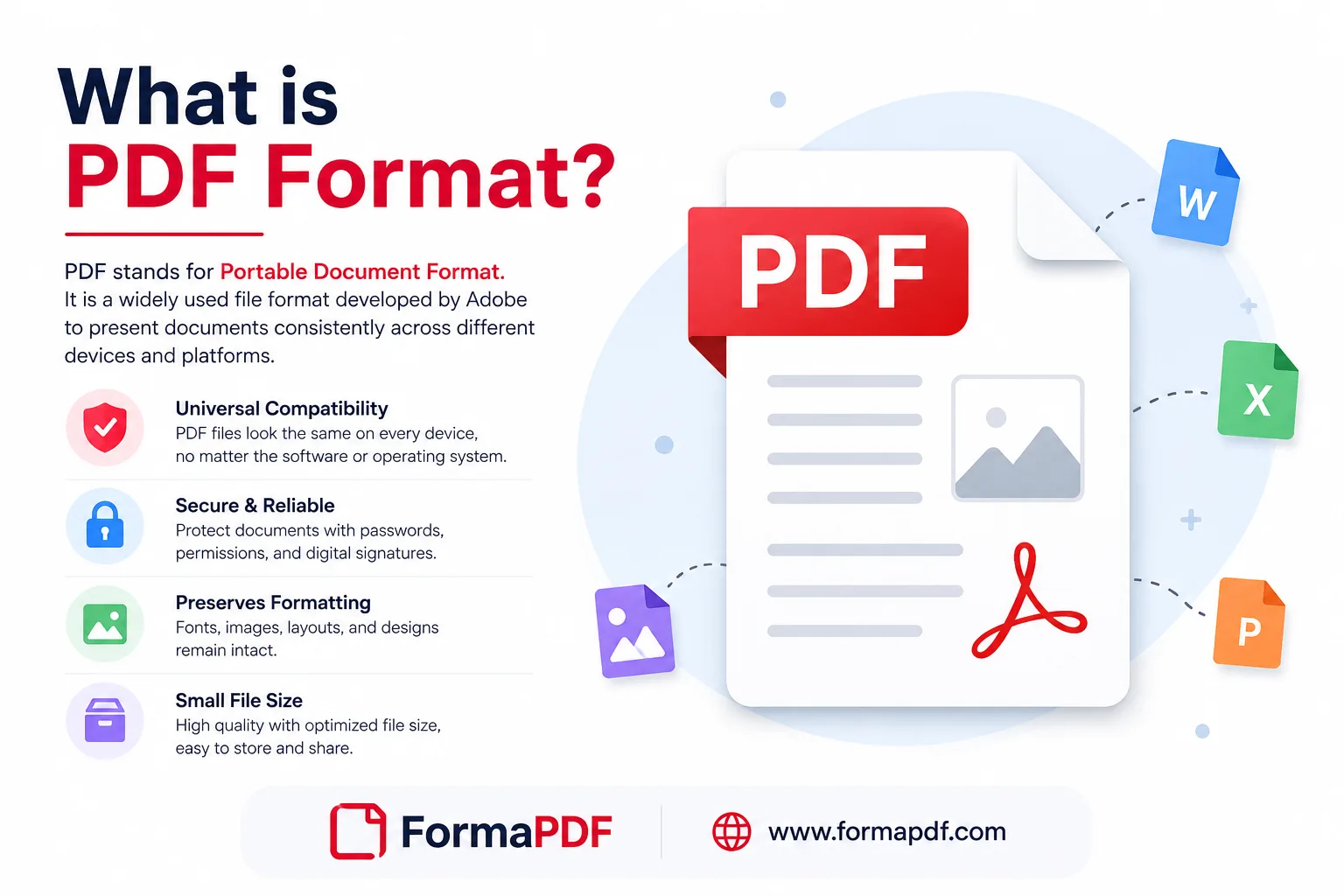
The idea behind PDF was straightforward. A document should look exactly the same no matter where it is opened, whether that is a Windows laptop, a Mac, a phone, or a printer. Adobe achieved this by embedding fonts, images, and layout instructions directly inside the file itself, so the document does not depend on the software or system used to view it.
Over the following decades, PDF grew from a niche business tool into the most widely used document format in the world. Schools use it for assignments and certificates. Governments use it for forms, tax documents, and official notices. Companies use it for contracts, invoices, and reports. Individuals use it for resumes, ebooks, and everyday paperwork.
Part of the reason PDF became the global standard is that it preserves formatting with almost perfect accuracy. When you convert a Word document to PDF using a tool like Word to PDF, every heading, table, image, and font stays exactly where you placed it. There is no risk of a paragraph shifting or a table breaking apart when someone else opens the file.
Businesses rely on PDF because it looks professional and cannot be easily altered by accident. Schools use it because assignments and exam papers stay consistent regardless of which device a student uses. Governments use it because official forms need to remain legally identical no matter who opens them. And everyday users like PDF simply because it works everywhere, every time, without surprises.
Table of Contents
- What Is PDF Format?
- Why PDF Format Is So Popular
- What Can You Do With PDF Files?
- PDF Formatting Explained
- How To Format A PDF Correctly
- How To Change Documents To PDF Format
- Correct PDF Format Online
- PDF Formatter
- PDF Formatting Best Practices
- Advantages Of Using PDF Format
- Common PDF Problems And Solutions
- Works On Every Device
- Security And Privacy
- More PDF Tools
- Frequently Asked Questions About PDF Format
- What is PDF format?
- Why is PDF the most popular document format?
- What is PDF formatting?
- How do I format a PDF?
- Can I edit a PDF online?
- How do I convert documents into PDF format?
- Can I format PDFs for free?
- Is PDF compatible with all devices?
- Can I password protect a PDF?
- Can I compress PDF files without losing quality?
- Can I merge multiple PDFs?
- Can I split PDF pages?
- Can I convert PDF back into Word?
- Why is my PDF blurry?
- How can I reduce PDF size?
- Is PDF better than Word?
- Can I add images to PDF?
- Can I digitally sign a PDF?
- Can I highlight text inside PDFs?
- Is PDF secure?
- What is the difference between PDF format and PDF formatting?
- Can I rotate pages in a PDF?
- Can I remove a page from a PDF?
- Can I add a blank page to a PDF?
- Can I crop a PDF page?
- Can I convert Excel to PDF?
- Can I convert PowerPoint to PDF?
- Can I read a PDF online without downloading it?
- Can I convert a PDF to an ebook format?
- Can I turn a PDF into a flipbook?
- Can I repair a broken PDF file?
- Can I create a PDF from plain text?
- Can I convert a webpage to PDF?
- Do I need to install software to use these PDF tools?
- Are these PDF tools free to use?
- Can I use PDF tools on my phone?
- How long are my uploaded files stored?
- Can I count the number of words in a PDF?
- Can I generate an invoice as a PDF?
- Conclusion
Why PDF Format Is So Popular
PDF did not become the world's most trusted document format by accident. It earned that position through a combination of practical benefits that other formats simply could not match.
Universal Compatibility
A PDF file opens the same way on almost any device. Whether someone is using an old Windows computer, a brand new MacBook, an Android phone, or a Chromebook, the document will display correctly. This is one of the biggest reasons companies and institutions default to PDF for anything they need to share with a wide audience.
Consistent Layout
Unlike editable formats such as Word or PowerPoint, a PDF locks the layout in place. Margins stay where you set them, fonts do not substitute themselves with something else, and images do not shift around. If you send a proposal to a client, you know it will look exactly the way you designed it.
Printing Accuracy
PDF files are built with print in mind. Page sizes, margins, and color settings translate accurately from screen to paper. Anyone who has tried printing a Word document only to find the layout broken understands why this matters. With PDF, what you see is genuinely what you get, whether you use the Print PDF tool directly from a browser or print from a desktop application.
Easy Sharing
A PDF is usually a single, self-contained file. There is no need to attach separate fonts or worry about the recipient having the right software installed. You can send it through email, upload it to a website, or share it through cloud storage without complications.
Security
PDF supports encryption and access controls that most other document types do not offer natively. You can restrict who can open a file, prevent printing, or block copying of the content.
Password Protection
Sensitive documents like contracts, financial statements, or medical records can be locked with a password using a tool such as Lock PDF. Only someone with the correct password can open the file, which adds a real layer of protection for confidential information.
Digital Signatures
Instead of printing, signing by hand, and scanning a document, PDF allows for digital signatures that are legally recognized in most countries. This has become especially important for remote work and online business, where signing a contract with the Sign PDF tool can take less than a minute.
Small File Sizes
PDF files can be compressed without losing much visual quality, which makes them easier to email and store. Someone dealing with a large scanned document can shrink it significantly using the Compress PDF tool, turning a bulky file into something that fits easily into an email attachment.
Long Term Archiving
PDF is designed to remain readable for decades. Government agencies, law firms, and libraries often rely on PDF specifically because it will still open correctly years or even decades from now, unlike some proprietary formats that eventually become obsolete.
What Can You Do With PDF Files?
PDF is not just a static format for viewing documents. It supports a wide range of tasks that make it flexible enough for almost any workflow.
- Editing text and images directly inside a document using Edit PDF Online, so you can fix typos or update information without recreating the whole file.
- Merging multiple files into a single document with Merge PDF Online, which is useful when combining chapters, reports, or scanned pages.
- Splitting a large PDF into smaller pieces using Split PDF, ideal when you only need to send a specific section of a longer document.
- Compressing file size through Compress PDF so large files become easier to email or upload.
- Converting between formats such as converting a document to or from Word, Excel, or image files.
- Signing documents digitally with Sign PDF, removing the need to print and scan.
- Highlighting important text using Highlight PDF, which is handy for studying or reviewing contracts.
- Locking a file with a password through Lock PDF to keep sensitive content private.
- Unlocking a protected file using Unlock PDF when you have permission and need to remove an existing password.
- Repairing a damaged file with Repair PDF when a document has become corrupted or will not open properly.
- Adding images to an existing document through Add Image to PDF.
- Adding clickable links using Add a Link to a PDF, useful for pointing readers to a website or another resource.
- Adding a watermark for branding or protection using Add Watermark to PDF.
- Removing unwanted pages with Delete PDF Pages when a document has extra or outdated content.
- Drawing on a document directly using Draw on PDF, helpful for annotating diagrams or marking up a form.
These tasks cover the vast majority of what people need when working with documents day to day, and all of them can be done directly inside a browser without installing anything.
PDF Formatting Explained
When people talk about PDF formatting, they usually mean the visual structure and presentation of a document. Good formatting is what makes a document easy to read, professional looking, and consistent from the first page to the last.
Fonts
A well formatted PDF sticks to a small number of fonts, usually one for headings and one for body text. Mixing too many typefaces makes a document look chaotic and unprofessional.
Text Alignment
Left aligned text is generally easiest to read for long paragraphs, while centered text works better for titles and short headings. Justified text can look neat but sometimes creates awkward gaps between words, so it should be used carefully.
Paragraph Spacing
Proper spacing between paragraphs gives the reader's eyes room to rest. Cramped text with no breathing room is tiring to read, especially on a screen.
Margins
Consistent margins on every page keep a document looking balanced. Margins that are too narrow can cause text to feel cramped, while margins that are too wide waste space and make the document longer than necessary.
Headers and Footers
Headers and footers are useful for including a document title, page numbers, or a company name on every page. They help readers keep track of where they are, especially in longer files.
Tables
Tables should have clear borders or shading so the reader can easily follow rows and columns. Overcrowded tables with tiny text are one of the most common formatting mistakes in business documents.
Images
Images need to be properly sized and aligned with the surrounding text. An image that is stretched, blurry, or awkwardly placed can make an otherwise well written document look sloppy.
Hyperlinks
Clickable links, added with a tool like Add a Link to a PDF, should be used sparingly and only where they genuinely help the reader, such as linking to a source or a related resource.
Lists
Bullet points and numbered lists break down complex information into digestible pieces. They are especially useful for instructions, comparisons, or summaries.
Colors
Color should be used to highlight important information, not decorate every page. Too many colors can distract from the actual content and make a document harder to read.
Document Structure
A logical structure with clear headings and subheadings helps readers scan a document quickly and find the information they need without reading every word.
Good formatting matters because it directly affects how a reader perceives the document and, by extension, the person or company behind it. A cluttered, inconsistent file can undermine even the best written content, while a clean, well organized document builds trust before the reader has finished the first paragraph.
How To Format A PDF Correctly
Formatting a PDF properly does not require design experience. Following a consistent process makes the difference between a document that looks amateurish and one that looks polished.
1. Organize Your Pages First
Before worrying about fonts or colors, make sure the pages are in the right order. If you need to rearrange, remove, or add blank pages, tools like Delete PDF Pages and Blank Page PDF make this quick to fix before you move on to the details.
2. Keep Fonts Consistent
Stick to one font for body text and, at most, one additional font for headings. Consistency across the whole document is more important than finding the perfect typeface.
3. Use White Space Wisely
Do not try to squeeze every bit of information onto a page. White space gives readers a place to rest their eyes and makes a document feel less overwhelming.
4. Set Proper Margins
A standard margin of around one inch on all sides works well for most documents, though this can be adjusted depending on the type of file and how it will be used.
5. Use Clear Headings
Break your document into sections with descriptive headings. This helps readers scan the document and understand its structure at a glance.
6. Place Images Thoughtfully
Images should support the surrounding text rather than interrupt it. Align them properly and make sure they are not stretched or pixelated. If a document has images that need to be added after the fact, Add Image to PDF makes it simple to insert them in the right spot.
7. Format Tables Cleanly
Keep tables simple, with clear column headings and enough spacing that the data is easy to read at a glance.
8. Consider Accessibility
Use descriptive headings, reasonable font sizes, and good color contrast so the document is easier to read for everyone, including people using screen readers or assistive technology.
9. Prioritize Readability
A document formatted for readability uses short paragraphs, clear headings, and a logical flow from one idea to the next.
10. Check How It Prints
Before finalizing a document, check how it looks when printed using Print PDF. Some formatting issues, like text running too close to the edge of the page, are only obvious once you see the printed version.
How To Change Documents To PDF Format
One of the most common reasons people search for PDF tools is to convert an existing document into PDF format. Fortunately, this process is quick and does not require any special software.
- Convert a Word document using Word to PDF, keeping every heading, font, and image intact.
- Turn a spreadsheet into a shareable file with Excel to PDF, which preserves rows, columns, and formatting.
- Convert a slide deck using PowerPoint to PDF so a presentation can be shared without needing PowerPoint installed.
- Turn a photo into a document with JPG to PDF, useful for scanned receipts or handwritten notes.
- Convert PNG images using PNG to PDF, ideal for screenshots or graphics with transparent backgrounds.
- Convert modern image formats using WEBP to PDF.
- Turn a webpage into a document using HTML to PDF, useful for saving articles or web content for offline reading.
- Convert an ebook file using EPUB to PDF.
- Turn plain text into a formatted document with Text to PDF.
- Convert a rich text file using RTF to PDF.
- Convert an OpenDocument file with ODT to PDF.
Each of these conversions runs directly in the browser, meaning there is no software to download and no waiting around for installation. You simply upload the original file, let the tool do the conversion, and download the finished PDF.
Correct PDF Format Online
Getting a document into the correct PDF format often involves more than just converting it. Once a file exists as a PDF, there are several ways to refine it so it looks and functions exactly the way you need.
Editing text and images directly is possible with Edit PDF Online, which lets you fix mistakes without recreating the entire document. If the file is too large to share easily, Compress PDF reduces the size while keeping the content readable.
Reordering or removing pages is straightforward with Delete PDF Pages, which helps clean up a document before sending it out. If a page is oriented incorrectly, rotating it fixes the issue instantly, and cropping unwanted margins or borders can be done with Crop PDF.
Adding a watermark for branding or copyright protection is handled by Add Watermark to PDF, while a digital signature can be added in seconds using Sign PDF. For scanned documents that are difficult to read or search, improving the quality is possible with Enhance PDF.
Finally, if a document contains sensitive information, applying a password with Lock PDF ensures that only people with the right credentials can open it.
PDF Formatter
Many people search for a PDF formatter expecting to find one single tool that fixes everything about a document automatically. In reality, formatting a PDF usually involves several different actions working together rather than one universal button.
What people actually need when they search for a PDF formatter is often a combination of editing, organizing, and converting features. Someone might need to fix the font in one section, rearrange pages, compress the file, and then add a signature before it is ready to send. This is why a complete toolkit, rather than a single formatting function, is what genuinely solves the problem.
Instead of hunting for a mythical all in one formatter, it makes more sense to think about what specific outcome you want. If the goal is a cleaner layout, Edit PDF Online is the right starting point. If the goal is a smaller file, Compress PDF handles that directly. Breaking the task into its actual components almost always produces a better result than searching for a single shortcut.
PDF Formatting Best Practices
Following a few consistent habits will keep your documents looking professional every time.
- Font consistency: use no more than two fonts throughout the entire document.
- Page numbering: include page numbers on any document longer than a couple of pages.
- Clear headings: use a consistent heading style so readers can navigate the document easily.
- White space: avoid cramming too much content onto a single page.
- Image quality: use sharp, properly sized images rather than stretched or low resolution graphics.
- Hyperlinks: add links only where they genuinely help the reader, using Add a Link to a PDF when needed.
- Accessibility: use readable font sizes and strong color contrast throughout.
- Print optimization: check margins and layout before printing with Print PDF.
- Mobile readability: make sure text is legible when viewed on a small screen.
- File size optimization: keep documents lightweight using Compress PDF so they load quickly and are easy to email.
Advantages Of Using PDF Format
PDF continues to dominate as the preferred document format for a reason. It offers a combination of benefits that few other file types can match.
Sharing a PDF is effortless because the file is self-contained and does not rely on the recipient having specific software installed. Because it works the same way across Windows, macOS, Linux, Android, and iOS, PDF offers universal compatibility that eliminates the guesswork of whether a file will open correctly.
When it comes to printing, PDF ensures the layout, spacing, and colors translate accurately from screen to paper, avoiding the frustration of misaligned text or cut-off content. For long term preservation, PDF is built to remain readable for many years, which is why libraries, courts, and government agencies rely on it for permanent records.
Security is another major advantage, with options to add passwords, restrict editing, or apply digital signatures for authenticity. A well formatted PDF also carries a professional appearance that reflects positively on whoever created it, whether that is a business proposal or a student's final project. And because PDF works identically across every operating system, cross platform support means nobody has to worry about compatibility issues when sharing files between different types of devices.
Common PDF Problems And Solutions
Even with all its advantages, PDF files can run into occasional problems. Fortunately, most of these issues have simple fixes.
Large PDF Size
A file that has become too large to email or upload easily can be reduced significantly with Compress PDF, which shrinks the file while preserving readable quality.
Cannot Edit PDF
If a document seems locked into its original layout, Edit PDF Online allows direct changes to text and images without needing the original source file.
Password Protected PDF
When you have permission to access a locked file but no longer need the password protection, Unlock PDF removes the restriction.
Corrupted PDF
A file that will not open correctly or shows errors can often be fixed using Repair PDF, which rebuilds the document structure.
Scanned PDF That Is Hard To Read
Scanned documents with poor image quality can be improved using Enhance PDF, making text and images clearer.
Wrong Page Order
Pages that ended up out of sequence can be fixed by removing and reinserting them in the correct order using Delete PDF Pages alongside Blank Page PDF to insert new pages where needed.
Blurry Images
Low quality images inside a PDF can sometimes be sharpened using Enhance PDF, which improves overall clarity.
Printing Issues
If a document does not print the way it looks on screen, checking the layout through Print PDF can help identify and resolve spacing or margin problems before sending it to the printer.
Works On Every Device
One of the strongest selling points of PDF, and of browser-based tools in general, is that everything works without needing to install anything. Whether you are on a Windows desktop, a Mac, a Linux machine, an Android phone, an iPhone, an iPad, or a Chromebook, PDF tools run directly inside your web browser.
This means there is no need to worry about which operating system you are using or whether your device has enough storage for a bulky desktop application. As long as you have an internet connection and a browser, you can edit, convert, compress, and manage PDF files from virtually anywhere.
Security And Privacy
Handling documents online naturally raises questions about security, and rightly so. Secure uploads protect files while they are being processed, ensuring that data is not exposed during transfer. Encryption adds another layer of protection, particularly important for financial or personal documents.
Automatic deletion policies mean that uploaded files do not sit around indefinitely on a server after you are finished with them. This reduces the risk of sensitive information being accessed later by anyone other than you. Combined with these practices, privacy protection ensures that your documents remain your own, used only for the task you intended and nothing more.
More PDF Tools
Beyond the tools already mentioned, there are several other useful options worth knowing about.
- PDF to Word converts a PDF back into an editable Word document, useful when you need to make substantial changes to the original content.
- PDF to Excel pulls data out of a PDF and turns it into an editable spreadsheet.
- PDF to PowerPoint converts static PDF pages into an editable slide deck.
- PDF to JPG turns pages of a PDF into individual image files.
- PDF to Image offers a broader range of image export options for entire documents.
- PDF Invoice Generator helps small businesses and freelancers create professional invoices in minutes.
- PDF Word Counter quickly counts the total words in a document, useful for writers and students.
- PDF Reader Tool allows you to open and view PDF files directly in the browser without downloading them.
- PDF to Flipbook turns a static document into an interactive, page-turning digital publication.
- PDF to EPUB converts documents into a format suited for ebook readers.
- Speech Text to PDF transforms spoken words into a written document.
- PDF to HTML converts a document into web-ready code, useful for publishing PDF content directly on a website.
Each of these tools addresses a specific need, and together they cover nearly every task someone might want to perform on a PDF file, all without leaving the browser.
Frequently Asked Questions About PDF Format
What is PDF format?
PDF, or Portable Document Format, is a file type designed to preserve the exact layout, fonts, and images of a document regardless of the device or software used to open it.
Why is PDF the most popular document format?
PDF became popular because it offers consistent formatting, works across every major operating system, prints accurately, and supports security features like passwords and encryption.
What is PDF formatting?
PDF formatting refers to the visual structure of a document, including fonts, spacing, margins, headings, and overall layout.
How do I format a PDF?
You can format a PDF by editing text and images with Edit PDF Online, organizing pages, and applying consistent fonts and spacing throughout the document.
Can I edit a PDF online?
Yes, you can edit text, images, and layout directly in your browser using Edit PDF Online, without needing to install any software.
How do I convert documents into PDF format?
You can convert files from Word, Excel, PowerPoint, images, and other formats using dedicated conversion tools such as Word to PDF or JPG to PDF.
Can I format PDFs for free?
Yes, the core editing, converting, and organizing tools are available to use directly in your browser at no cost.
Is PDF compatible with all devices?
Yes, PDF files open consistently on Windows, macOS, Linux, Android, iOS, and Chromebook devices.
Can I password protect a PDF?
Yes, you can add a password to restrict access using Lock PDF.
Can I compress PDF files without losing quality?
Yes, using Compress PDF reduces file size while keeping the document readable and visually clear.
Can I merge multiple PDFs?
Yes, you can combine several files into one document using Merge PDF Online.
Can I split PDF pages?
Yes, Split PDF lets you separate a large document into smaller individual files.
Can I convert PDF back into Word?
Yes, PDF to Word converts a PDF into an editable Word document.
Why is my PDF blurry?
Blurry PDFs are usually caused by low resolution scanning or heavy compression. The Enhance PDF tool can help improve clarity.
How can I reduce PDF size?
You can reduce a PDF's file size using Compress PDF, which shrinks the file while maintaining readable quality.
Is PDF better than Word?
PDF is better for sharing and preserving formatting, while Word is better suited for active editing and collaboration. Many people use both depending on the stage of the document.
Can I add images to PDF?
Yes, you can insert images into an existing document using Add Image to PDF.
Can I digitally sign a PDF?
Yes, Sign PDF lets you add a digital signature directly to a document without printing or scanning.
Can I highlight text inside PDFs?
Yes, Highlight PDF allows you to mark important sections directly within the document.
Is PDF secure?
PDF supports encryption, password protection, and permission restrictions, making it one of the more secure formats for sharing sensitive documents.
What is the difference between PDF format and PDF formatting?
PDF format refers to the file type itself, while PDF formatting refers to how the content inside that file is visually organized and presented.
Can I rotate pages in a PDF?
Yes, individual or all pages within a document can be rotated to correct orientation issues before sharing or printing.
Can I remove a page from a PDF?
Yes, unwanted pages can be removed using Delete PDF Pages.
Can I add a blank page to a PDF?
Yes, you can insert a blank page anywhere in a document using Blank Page PDF.
Can I crop a PDF page?
Yes, unwanted margins or borders can be trimmed using Crop PDF.
Can I convert Excel to PDF?
Yes, spreadsheets can be converted while preserving rows and columns using Excel to PDF.
Can I convert PowerPoint to PDF?
Yes, presentations can be converted into a shareable format using PowerPoint to PDF.
Can I read a PDF online without downloading it?
Yes, the PDF Reader Tool lets you open and view files directly in your browser.
Can I convert a PDF to an ebook format?
Yes, documents can be converted for ebook readers using PDF to EPUB or PDF to MOBI.
Can I turn a PDF into a flipbook?
Yes, using PDF to Flipbook, a static document can become an interactive page-turning publication.
Can I repair a broken PDF file?
Yes, files that will not open correctly can often be fixed using Repair PDF.
Can I create a PDF from plain text?
Yes, plain text can be converted into a formatted document using Text to PDF.
Can I convert a webpage to PDF?
Yes, web content can be saved as a document using HTML to PDF.
Do I need to install software to use these PDF tools?
No, all of the tools run directly in your web browser, so there is nothing to download or install.
Are these PDF tools free to use?
Yes, the core tools for editing, converting, and organizing PDF files are free to use online.
Can I use PDF tools on my phone?
Yes, all the tools are designed to work on mobile browsers as well as desktop, so you can manage documents from a phone or tablet.
How long are my uploaded files stored?
Uploaded files are handled securely during processing and are not stored indefinitely, helping protect your privacy.
Can I count the number of words in a PDF?
Yes, the PDF Word Counter tool gives you an instant word count for any document.
Can I generate an invoice as a PDF?
Yes, the PDF Invoice Generator lets you create a professional invoice ready to send to clients.
Conclusion
PDF has earned its place as the world's most trusted document format because it solves a real problem. It keeps documents looking exactly the way they were designed, no matter where they are opened or who is opening them. From businesses drafting contracts to students formatting resumes, the format's reliability, security, and universal compatibility make it the natural choice for anyone who needs their documents to look professional every single time.
Format PDF brings together everything needed to work with PDF documents in one place. Whether the task is editing, converting, compressing, protecting, organizing, signing, or optimizing a file, the full range of tools is available directly in your browser. There is nothing to install and no learning curve to worry about.
Every tool works across devices, so you can move from a desktop at the office to a phone on the go without losing any functionality. Whether you are correcting a small formatting issue or preparing a complete business document from scratch, Format PDF gives you everything needed to create clean, professional, well formatted PDF files quickly and securely.

Qasir Mehmood
CEO / Co-Founder
Format PDF helps millions of users handle their documents with confidence. From converting files to editing, merging, splitting, compressing, and securing PDFs, our online tools are designed for speed, quality, and convenience. Founded by Qasir Mehmood, CEO, we continue to build solutions that save time and improve productivity.