Where Are PDF Files Stored On iPhone?
After you have got your PDFs on your device, you will probably want to find them later. Where do you begin? Well, that depends on the type of the device.
After you've downloaded a PDF on your iPhone, finding it again later isn't always obvious, especially if you weren't paying attention to where it landed the first time. Where your PDFs end up depends on how they got onto your phone in the first place. Most of the time, you'll find them in one of three places: the Files app, the Downloads folder inside it, or the Books app.
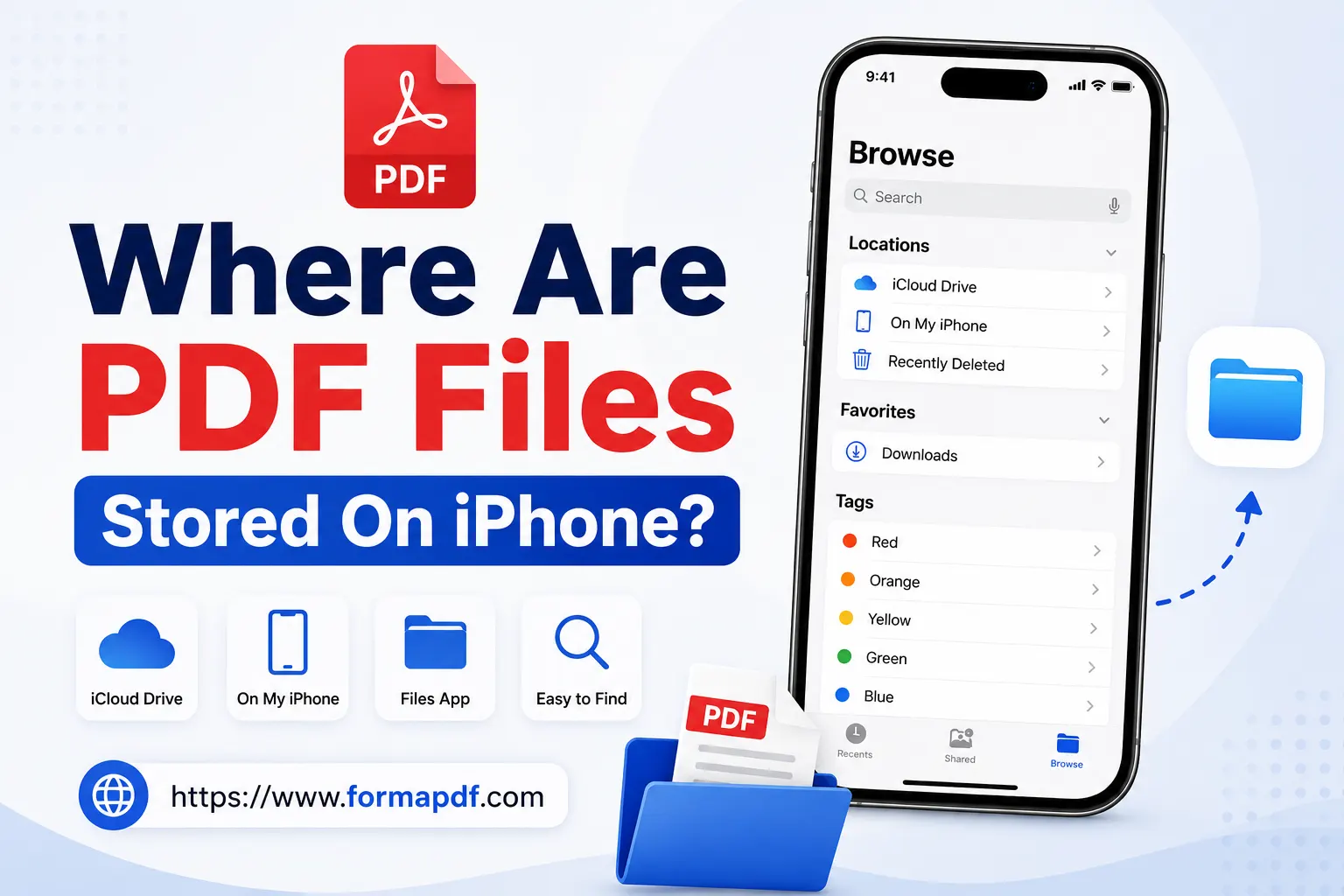
To find a PDF in the Downloads folder:
- Open the Files app on your iPhone.
- Tap On My iPhone on the main screen.
- Open the Downloads folder.
- Look for your file, or use the search bar at the top if you know part of the file name.
If it's not there, check the Books app instead:
- Open Books from your home screen.
- Tap the Library tab at the bottom. PDFs saved through certain apps end up here rather than in Files.
- Use the Search tab if you're scrolling through a lot of files.
And if neither of those has it, try iCloud Drive:
- Open the Files app.
- Tap Browse, then Locations, then select iCloud Drive.
- Browse through your folders, or use the search function, until you find the file.
Between the Downloads folder, Books, and iCloud Drive, one of these three almost always has what you're looking for.
How To Save A PDF On An iPhone
If you'd rather choose exactly where a PDF goes instead of hunting for it afterward, saving it properly the first time makes life easier.
To save a PDF from most apps:
- Open the PDF you want to save.
- Tap the Share icon, usually in the top corner of the screen.
- From the share sheet, choose Save to Files.
- Pick a folder, such as Downloads, iCloud Drive, or a cloud storage app like Google Drive or Dropbox if you've got one connected.
- Tap New Folder if you want to keep it somewhere specific rather than lumped in with everything else.
- Tap Save.
From Safari specifically:
- Open the PDF in Safari.
- Press and hold on the page until the Save to Files option appears.
- Follow the same folder and save steps as above.
You can also save straight to Google Drive, Dropbox, or OneDrive if you use one of those regularly, which makes the file accessible from your other devices too, not just your iPhone.
Changing Where Your iPhone Saves PDFs By Default
If you're tired of PDFs landing wherever your browser decides, you can change the default download location so every future file goes exactly where you want it.
In Chrome on iPhone:
- Open the Chrome app.
- Tap the three-dot menu in the top-right corner.
- Tap Settings.
- Scroll to Downloads and open it.
- Under Download location, choose where new PDFs should be saved. If your device supports an SD card, you'll see that as an option too.
- Turn on Ask Where To Save Files if you'd rather be asked each time instead of having everything go to the same spot automatically.
This same setting exists in most other mobile browsers as well, usually under a similar Downloads or Storage menu, so you're not locked into one specific browser to control this.
Editing A PDF Directly On Your iPhone
Finding and saving PDFs is one thing, but sooner or later you'll probably need to actually change something in one, whether that's fixing a typo, adding a note, or filling something in before sending it back.
That's what Format PDF is for. It's a browser-based PDF editor, so there's nothing to install on your iPhone. You open it, upload your file, and you're editing. It handles the basics well: adding or removing text and images, changing font size and color, adding sticky notes or highlights, and managing pages by extracting, deleting, or reordering them.
To edit a PDF on your iPhone using the Edit PDF Online tool:
- On your iPhone, go to formapdf.com/edit-pdf-online.
- Tap Select PDF file and choose the document you want to work on, or drag and drop it into the upload box.
- You'll land in editing mode, where you can add text, images, icons, and other elements to the file.
- Once you're happy with it, tap Download in the top-right corner to save your changes.
If you need to shrink a file before emailing it, the Compress PDF tool works the same way, straight from your phone's browser, no app required. And if you've got several PDFs you need combined into one before sending them off, Merge PDF does that in a couple of taps too.
Between finding your existing files and editing them when needed, you shouldn't have to reach for a laptop just to manage a PDF on your iPhone.

Qasir Mehmood
CEO / Co-Founder
Format PDF helps millions of users handle their documents with confidence. From converting files to editing, merging, splitting, compressing, and securing PDFs, our online tools are designed for speed, quality, and convenience. Founded by Qasir Mehmood, CEO, we continue to build solutions that save time and improve productivity.